The short answer: SocialCRM is a single place to write, schedule, and ship social posts across X, LinkedIn, Instagram, Threads, and Facebook. This guide walks through every screen you will touch, in the order you will touch them, so you can go from a brand new account to your first scheduled post in under ten minutes.

Who this guide is for
If you are a solo founder, a creator, or anyone building a personal brand on your own, you are the person this product and this guide are written for. You will learn the same workflow our happiest users repeat every week: open the composer, generate a post in your voice, pick a time, ship. The rest of the product is there to make that loop fast, measurable, and on brand.
Signing in for the first time
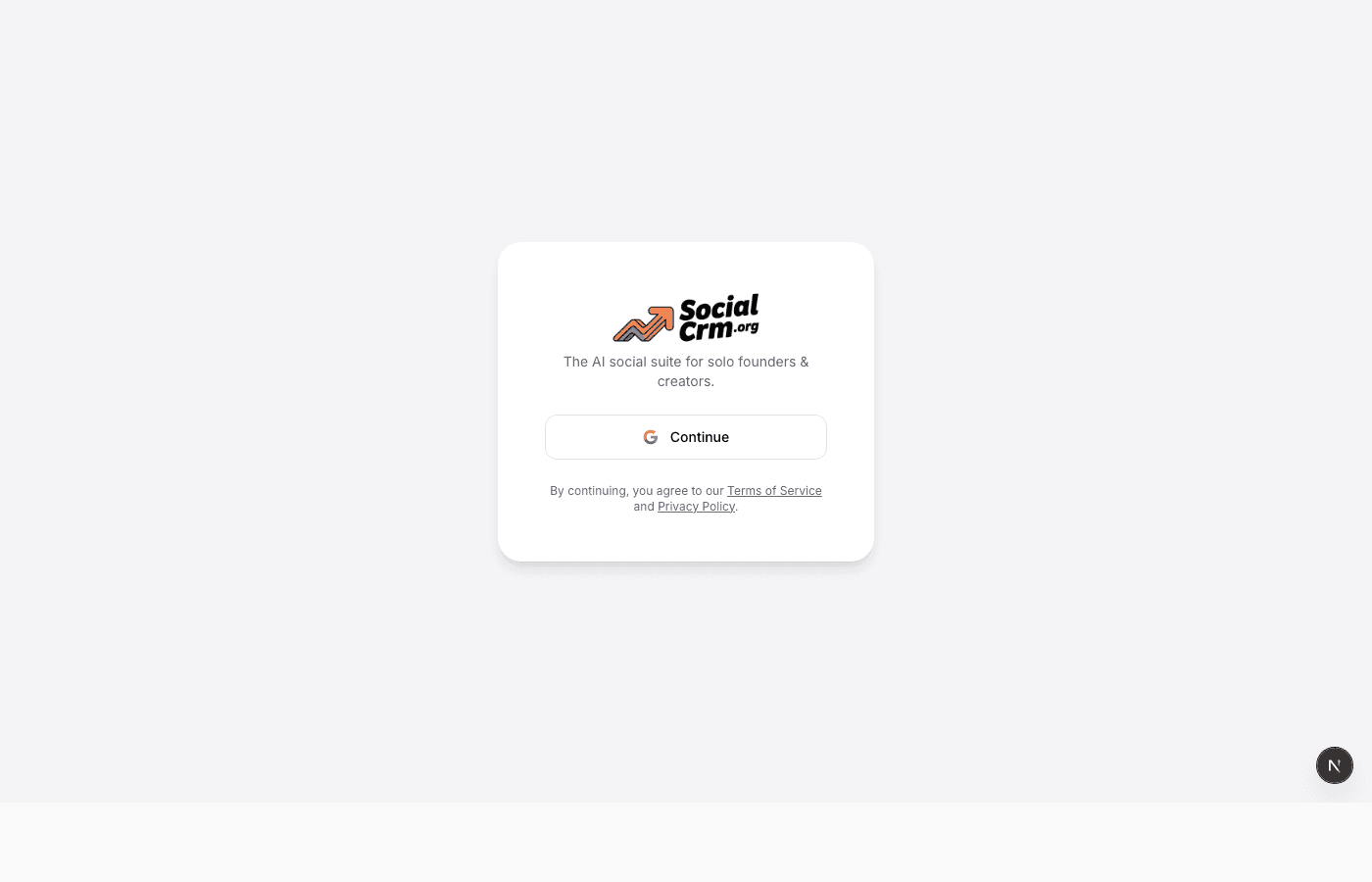
From the homepage, click Sign in. You will be offered Google, X, GitHub, or LinkedIn. Pick whichever is easiest. There is no email and password form, no verification email, and no onboarding questionnaire to fight through. One tap, and you land on your dashboard.
The dashboard: your home screen
After sign-in, you land on the dashboard. This is the map of the whole product. You see four things here, and it is worth getting familiar with each before you go anywhere else.
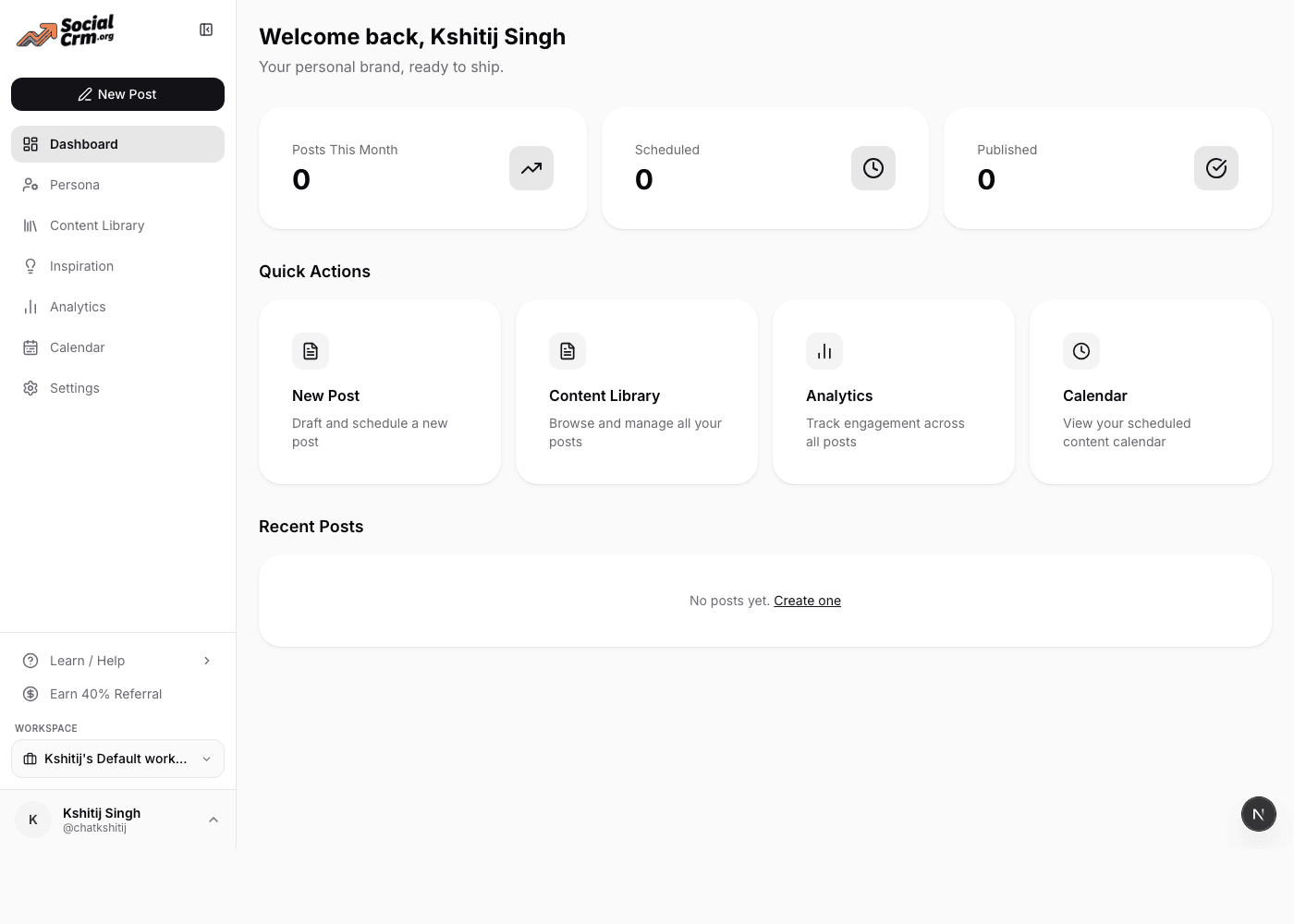
- Monthly counters. Posts this month, scheduled, and published. A quick at-a-glance read of whether you are on pace.
- Quick Actions. Four large cards for the things you will do most: start a new post, open the library, check analytics, or jump to the calendar.
- Recent Posts. The last handful of drafts or published posts, one click away from editing.
- Sidebar. The permanent home for every section of the app, with your active workspace and profile at the bottom.
Step 1: Connect your social accounts
Before you can publish anything, you need to tell SocialCRM which social accounts belong to you. Open Settings from the sidebar and find the Connected Accountssection. Each platform is a card with its own Connectbutton. Click one, sign in on that platform in a popup, and you come right back here with the account linked.
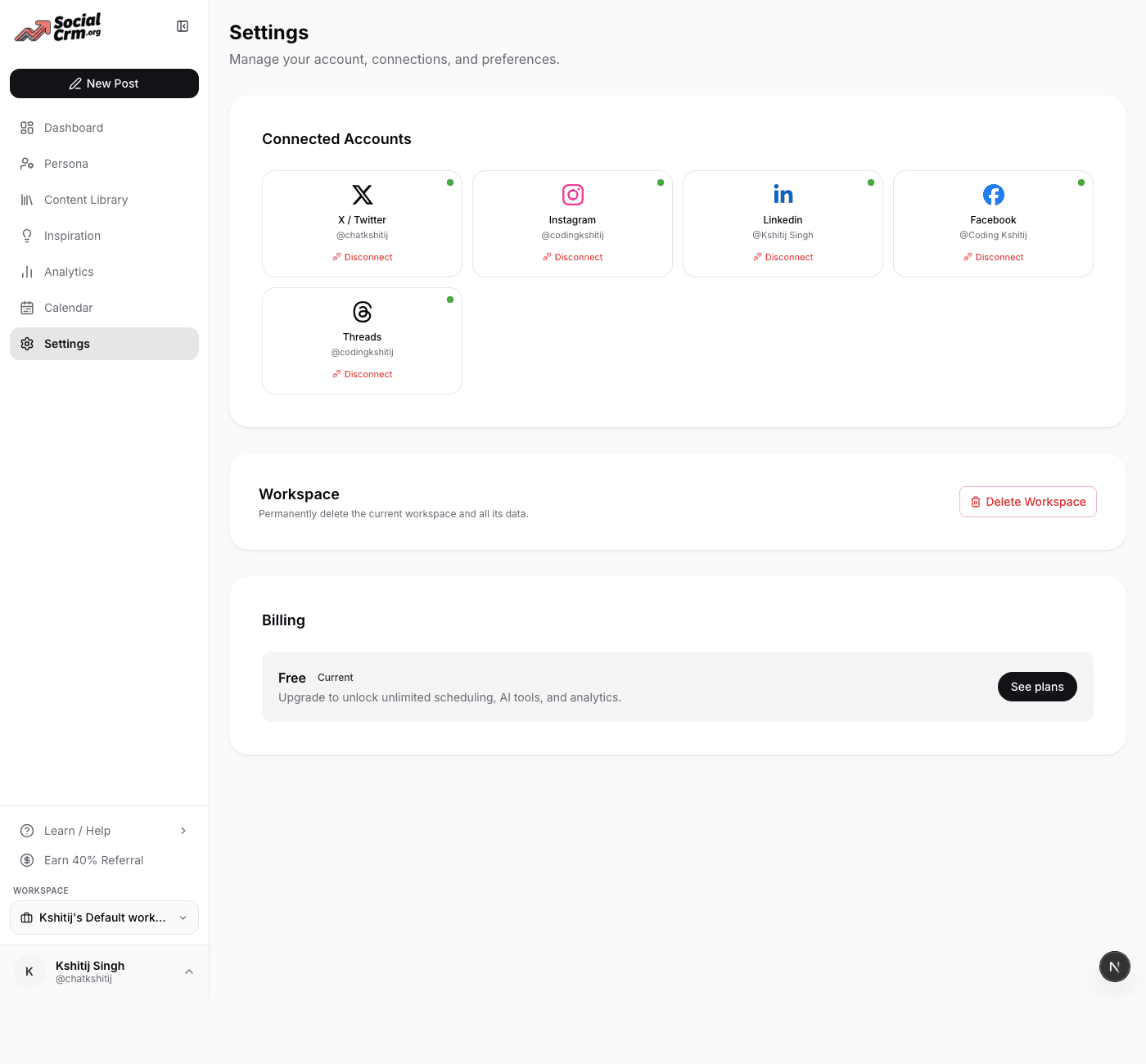
Supported platforms at a glance:
- X (Twitter) for short-form posts and threads.
- LinkedIn for long-form posts and company page updates.
- Instagram for feed posts, Stories, Reels, and carousels (professional accounts only).
- Threads for quick text and reply-style chains.
- Facebook for Pages.
If you ever want to remove an account, the same card has a red Disconnect link. Disconnecting does not delete any posts you have already scheduled or published, it simply stops the link between SocialCRM and that platform.
Step 2: Train your Brand Persona
This is the single most important screen in the product. The Persona page is where you teach SocialCRM how to sound like you. Everything the AI writes later, whether a post, a thread, a rewrite, or a caption, pulls from what you set here.
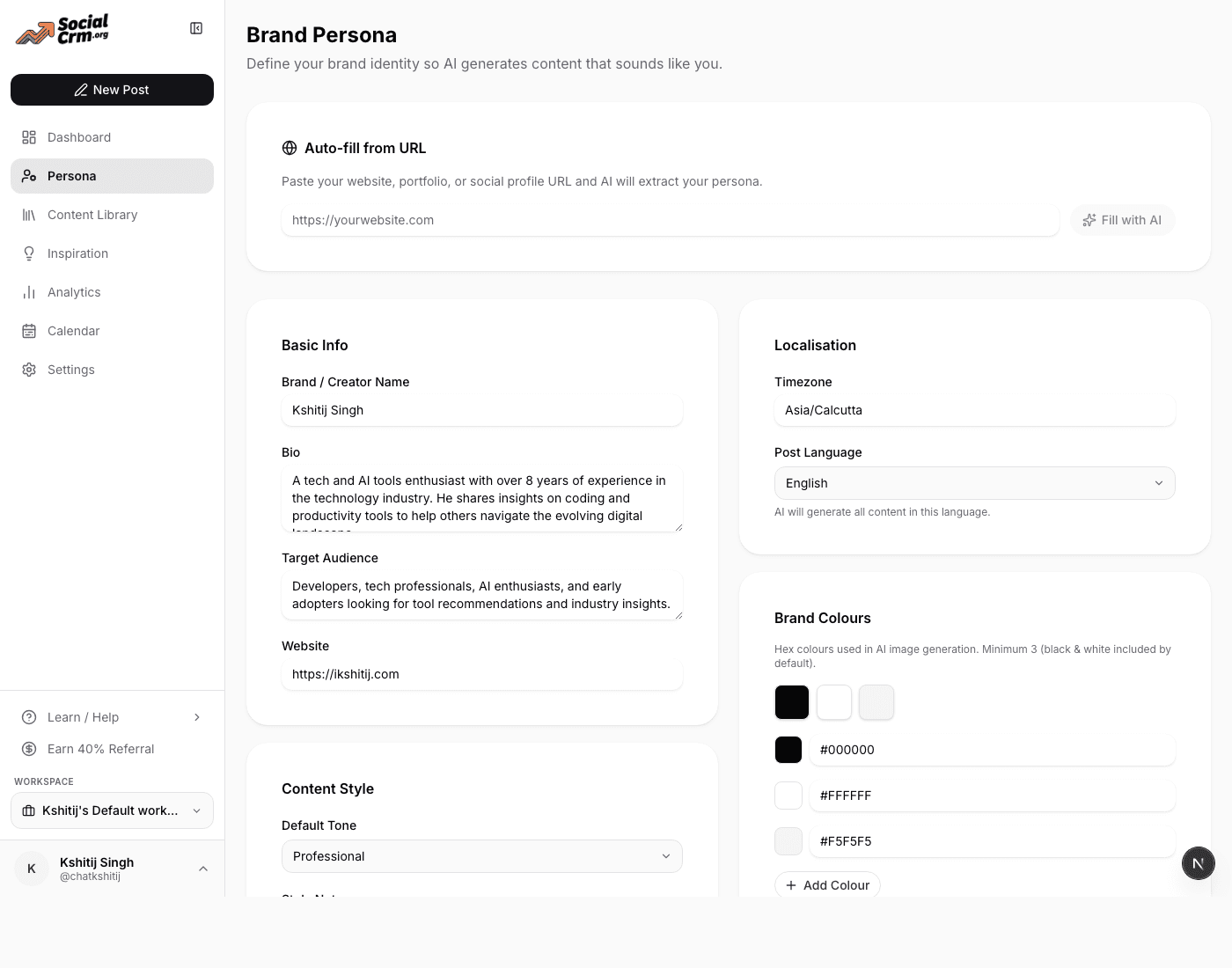
There is a shortcut at the top called Auto-fill from URL. Paste the link to your personal site, portfolio, or social profile, click Fill with AI, and SocialCRM will pre-populate most of the persona for you. Read through the result and adjust the parts that do not sound quite right before saving.
What each section does:
- Basic Info: your name, a short bio, the audience you are writing for, and your website. The AI treats this as ground truth about who you are.
- Localisation: your timezone and preferred post language. Used for scheduling hints and language of generated content.
- Content Style: your default tone (professional, casual, humorous, or inspirational), plus free-form style notes for any rules you want followed every time. Examples: no corporate jargon, always open with a one-sentence hook, or end with a question.
- Example Posts: paste five to ten of your best real posts here. This is the strongest training signal the AI has. It mimics the pacing, hook shape, and word choices of these examples.
- Brand Colours: pick a primary, secondary, and accent colour. These feed into AI image generation so every generated visual stays on brand.
Save when you are done. You can come back and retune the persona any time. A good habit is to update it once per quarter with your latest best-performing posts, because your voice naturally drifts as your audience grows.
Step 3: Create your first post
From anywhere in the app, click New Post in the sidebar. The composer is one screen, deliberately flat, and designed so you never have to go digging for a feature.
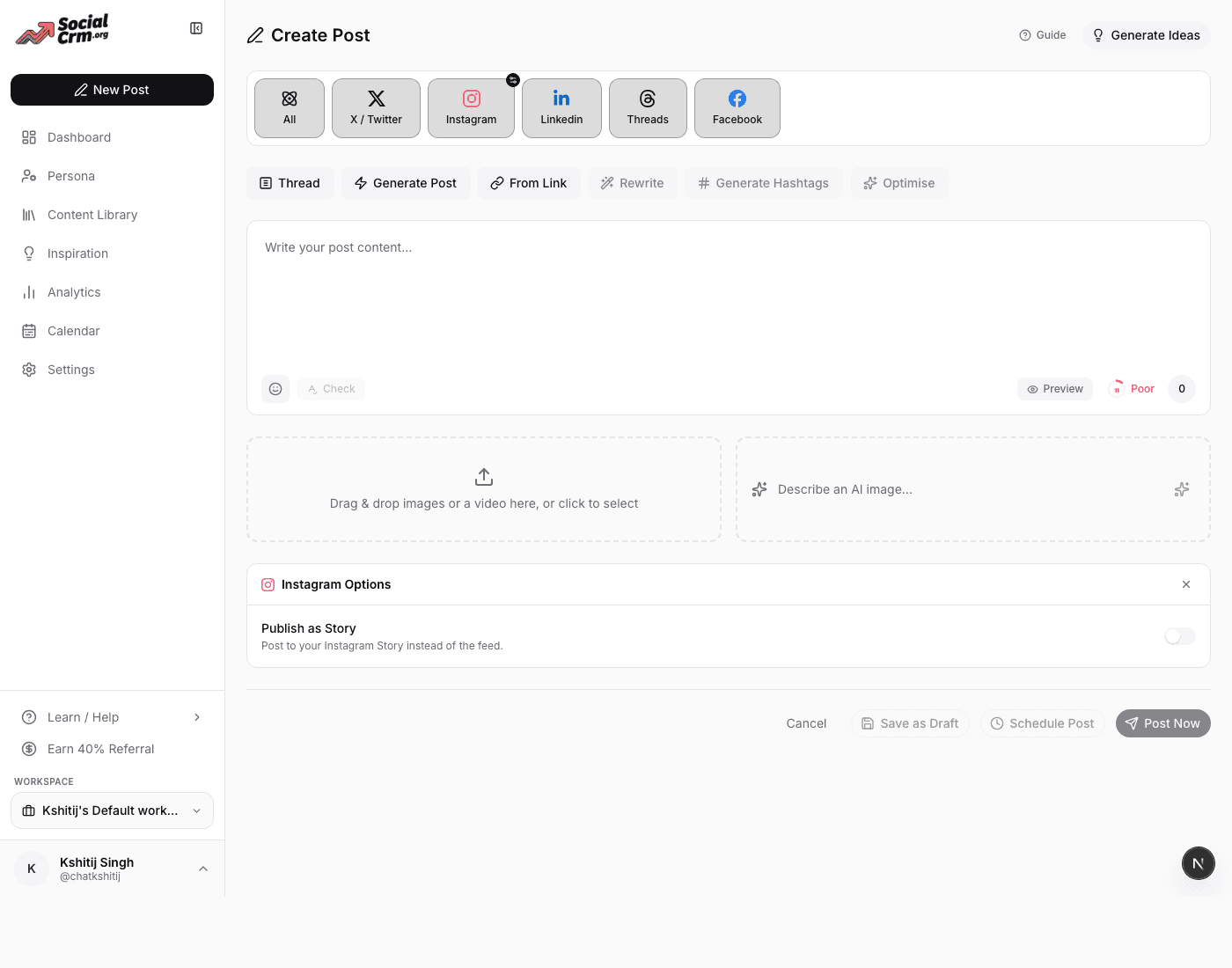
Working from top to bottom:
- Pick platforms. The row of platform pills across the top lets you choose which of your connected accounts this post should publish to. Selecting a platform enables any platform-specific options further down the page.
- Use the AI action row. This is where the product earns its keep. Seven buttons cover every writing task you will actually repeat.
- Write or paste your content. The big text area is the post body. Character counts update live. A mood score on the right gives you a rough read of whether the tone is hitting.
- Attach media. Drag images or a video into the upload zone, or click to pick files. Or describe an image in the Describe an AI image box and SocialCRM will generate one in your brand colours.
- Set platform-specific options. If you selected Instagram, for example, you will see an Instagram Options panel with a toggle for Publish as Story. Each platform only shows options that matter for it.
- Finish. At the bottom: Save as Draft to come back later, Schedule Post to pick a time, or Post Now to publish immediately to every selected platform.
The seven AI actions, in plain English
- Thread: a toggle for X. When on, your content is split into a numbered thread instead of one long tweet. The AI also fills the extra tweets for you if you click Generate Post while it is on.
- Generate Post: starts from nothing and writes a full post in your voice.
- From Link: paste any article URL, get a post that summarises and reacts to it, in your voice.
- Rewrite: takes what you have typed and rephrases it in a different tone.
- Generate Hashtags: returns a short list of relevant hashtags ranked by signal. Remove the ones you do not want.
- Optimise: takes one piece of content and produces a version tailored to each selected platform. Use this every time you cross-post, never the same text twice.
- Generate Ideas: in the header of the composer, opens a panel of fresh topic ideas when you cannot think what to write about.
Step 4: Schedule on the Calendar
When you click Schedule Post in the composer, you pick a future date and time. Once confirmed, the post appears on the Calendar at that slot. Open the Calendar any time to see your upcoming month at a glance.
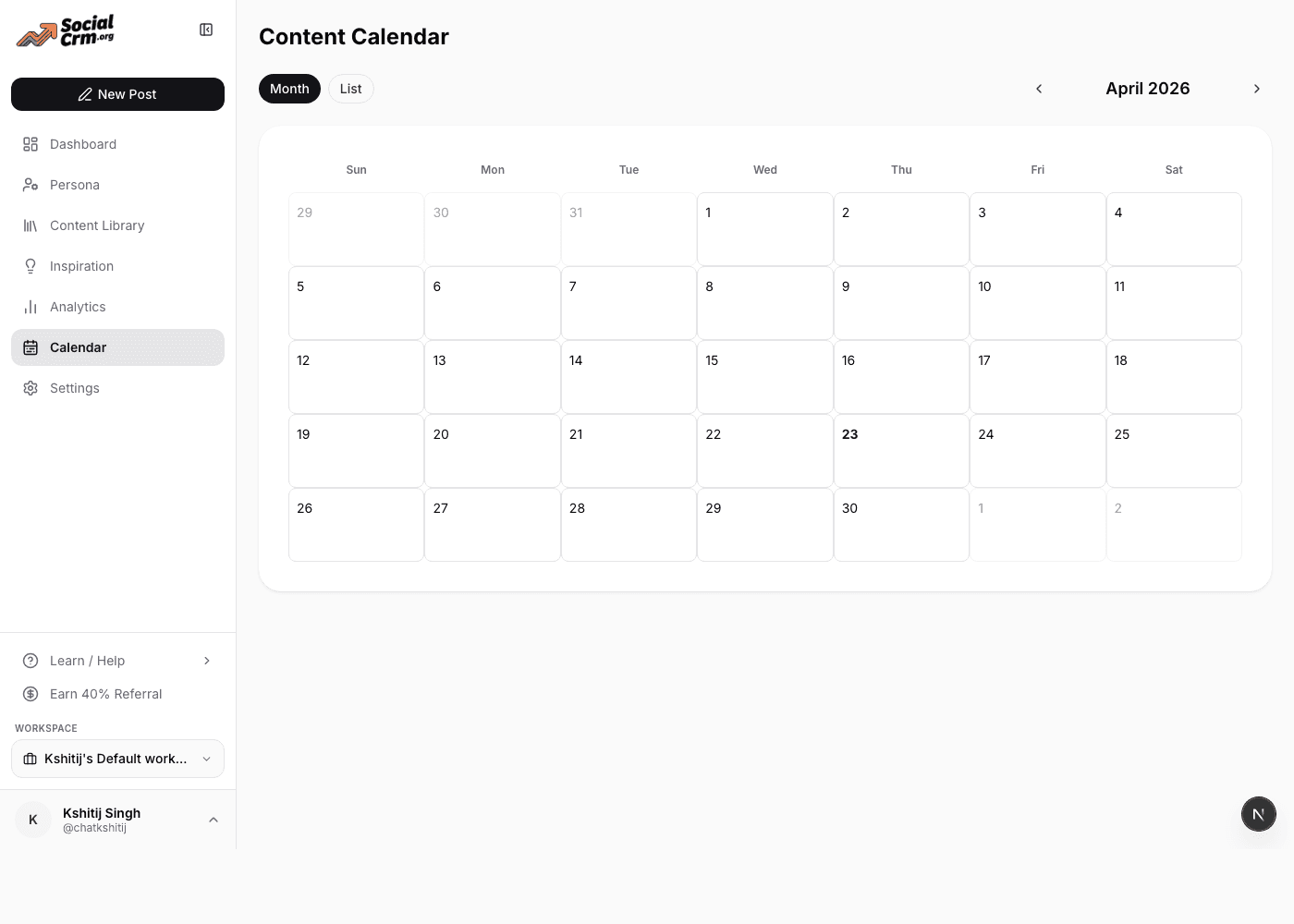
Click any scheduled item on the calendar to jump back into the composer and edit the post. Move a post to a new date by clicking through and changing the scheduled time. If a scheduled post fails at publish time (most often because a social platform token expired), it shows up in red with an error message, and you can fix and retry from the same view.
Wondering when to schedule? Our companion guide on the best times to post on Instagram covers the rule we use across every platform: match your audience's phone habits, then measure the first sixty minutes.
Step 5: Manage everything in the Library
The Content Library is the single place where every post you have ever written lives. Drafts, scheduled posts, published posts, and anything that failed to publish, all in one searchable list.
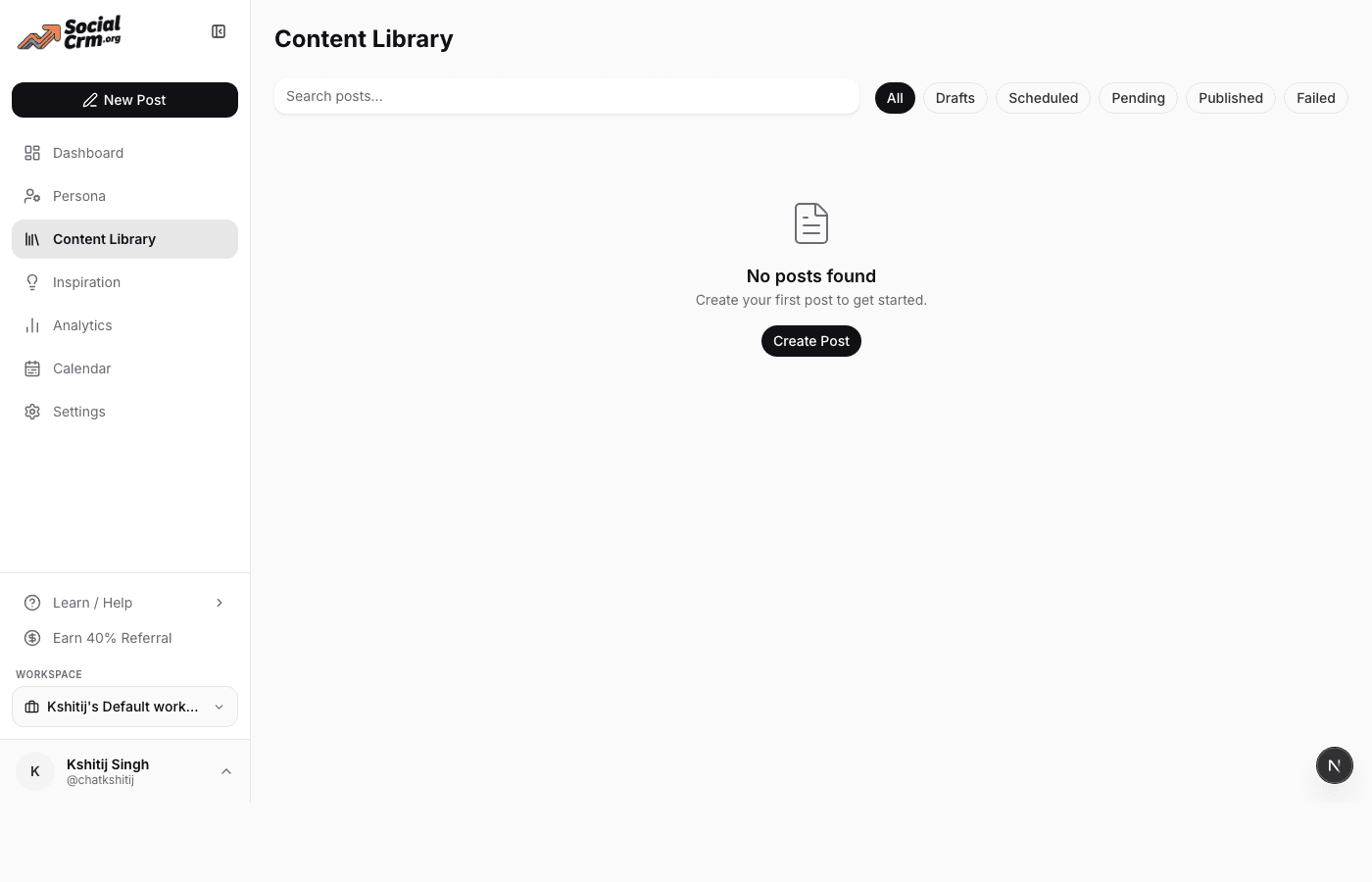
Click any post to open it in the composer pre-filled with everything you wrote before. Drafts never expire, so it is safe to save half-finished ideas and come back to them next week. If a post failed, the Library is where you retry it after fixing the underlying issue.
Step 6: Find ideas in Inspiration
Blank page energy is the enemy of consistent posting. The Inspiration tab solves that by pulling trending posts from every supported platform, filtered to the topics you declared on your persona. Scroll, skim, and when something sparks an idea, click it to open the composer pre-filled with that post as reference.
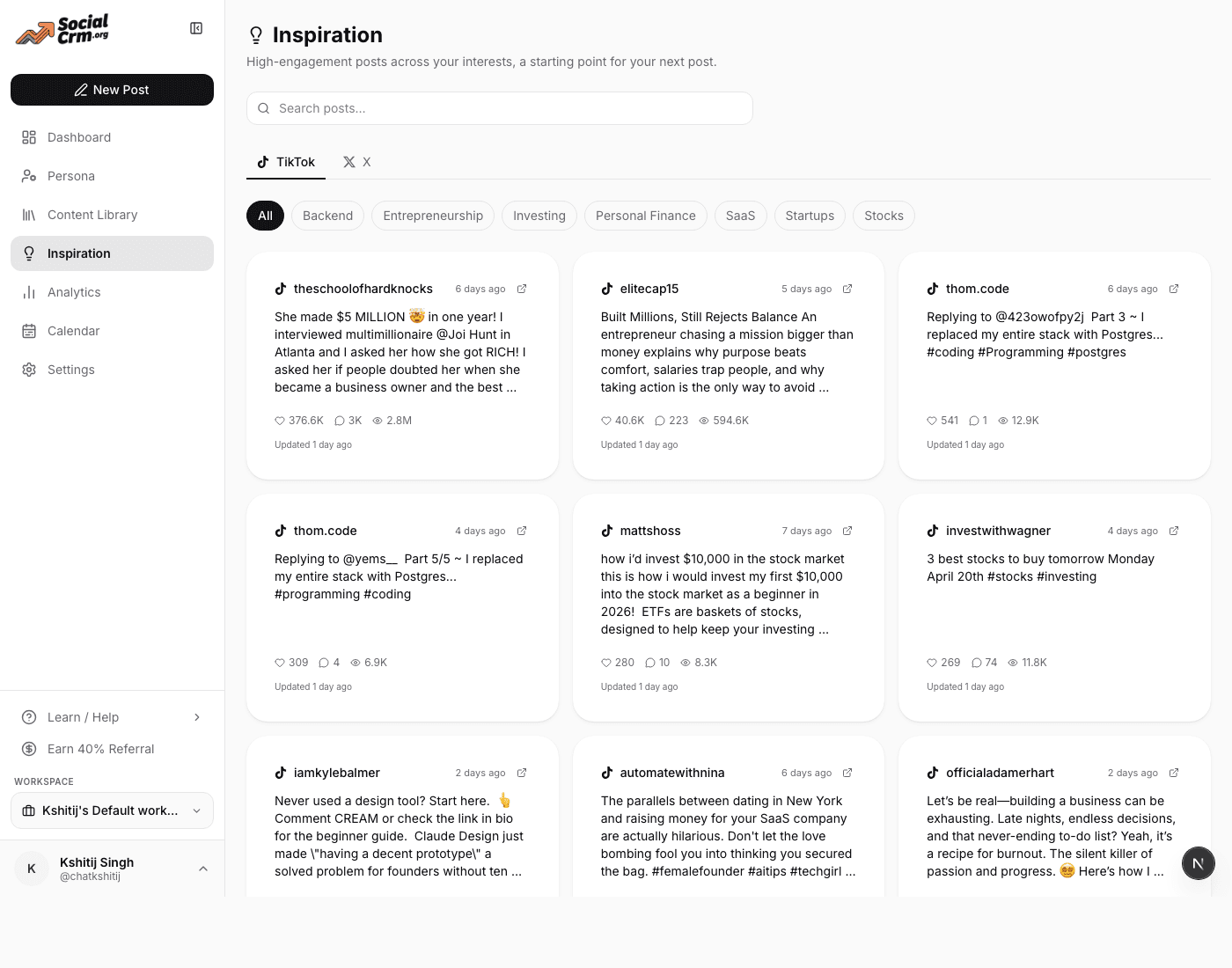
Search by keyword, filter by platform, or sort by most liked versus most recent. Most of our creators use this as a 90-second warmup at the start of their writing session: skim ten trends, save two, ship one.
Step 7: Read your Analytics
Once your posts have been live for a while, the Analytics tab becomes your feedback loop. Analytics has two tabs: Post Analytics and Social Accounts.
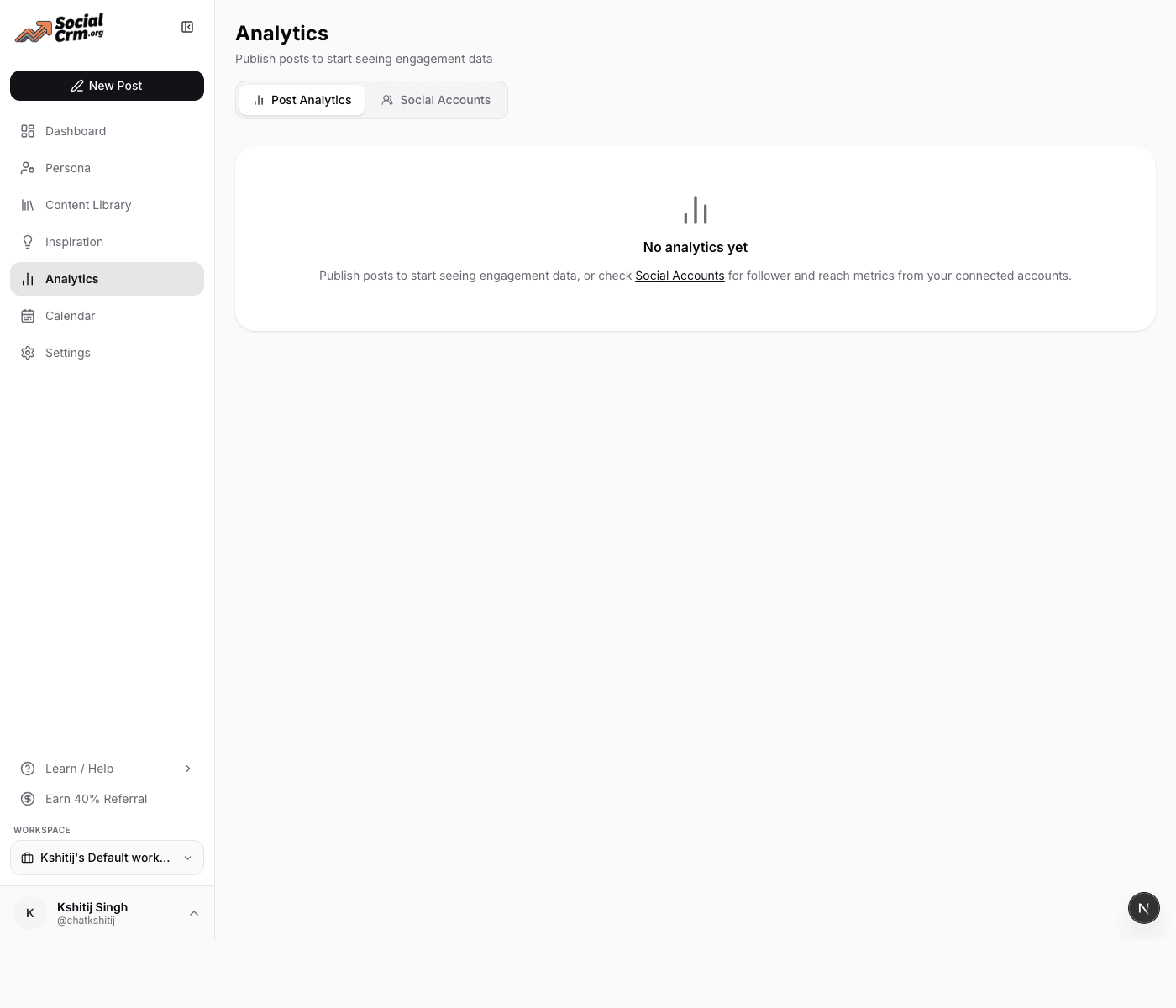
Post Analytics shows total likes, comments, shares, views, impressions, reach, and average engagement rate for each published post, with a breakdown by platform. This is the place to answer questions like did the LinkedIn version of my launch post beat the X version?
Social Accounts shows follower, following, and post counts for every connected account, plus a workspace-wide roll-up across all your platforms at the top. Five summary tiles (total followers, total posts, total engagements, overall engagement rate, and engagements per post) give you a one-glance read of how your brand is doing as a whole. A By Platform breakdown below splits those same numbers by network so you can see which channel is pulling weight.
Step 8: Reach for a free tool when you do not need the full app
Not every job needs the composer open. SocialCRM ships a growing library of free, no-signup tools that handle one focused job each. Open one, paste your input, copy the result, close the tab. No account, no watermark, no email gate.
- Content: character counters, line-break and font generators for Instagram, LinkedIn, Facebook, and X.
- Username generators: Instagram, TikTok, YouTube, Discord, Reddit, and Snapchat handle ideas with per-platform rules baked in.
- Idea generators: 50+ post, story, banner, and board ideas per platform when the blank page wins.
- Conversions and media: YouTube embed builder, LinkedIn QR code generator, Instagram grid slicer.
- AI-backed (free with login): AI title, bio, headline, hashtag, and post generators across Instagram, LinkedIn, Facebook, TikTok, and YouTube.
Browse the full set on the /tools index. Most pair naturally with the composer workflow above: generate a username on /tools, paste it into Settings; generate a hashtag set on /tools, paste it into the composer.
Workspaces: running more than one brand
Most users only need one workspace. But if you run multiple brands on the side, or you maintain a personal brand and a company brand, you can create a second (or third, or fifth) workspace from the workspace switcher at the bottom of the sidebar. Each workspace has its own connected accounts, its own persona, its own calendar, and its own analytics. Nothing leaks between them.
Switching between workspaces is one click from the same switcher. Everything in the app reloads to that workspace's data.
Plans and pricing
SocialCRM has three plans. All of them include the full composer, AI writing, brand voice training, scheduling, the calendar, the library, inspiration, and analytics. What changes between plans is how many workspaces you can run and how much you pay.
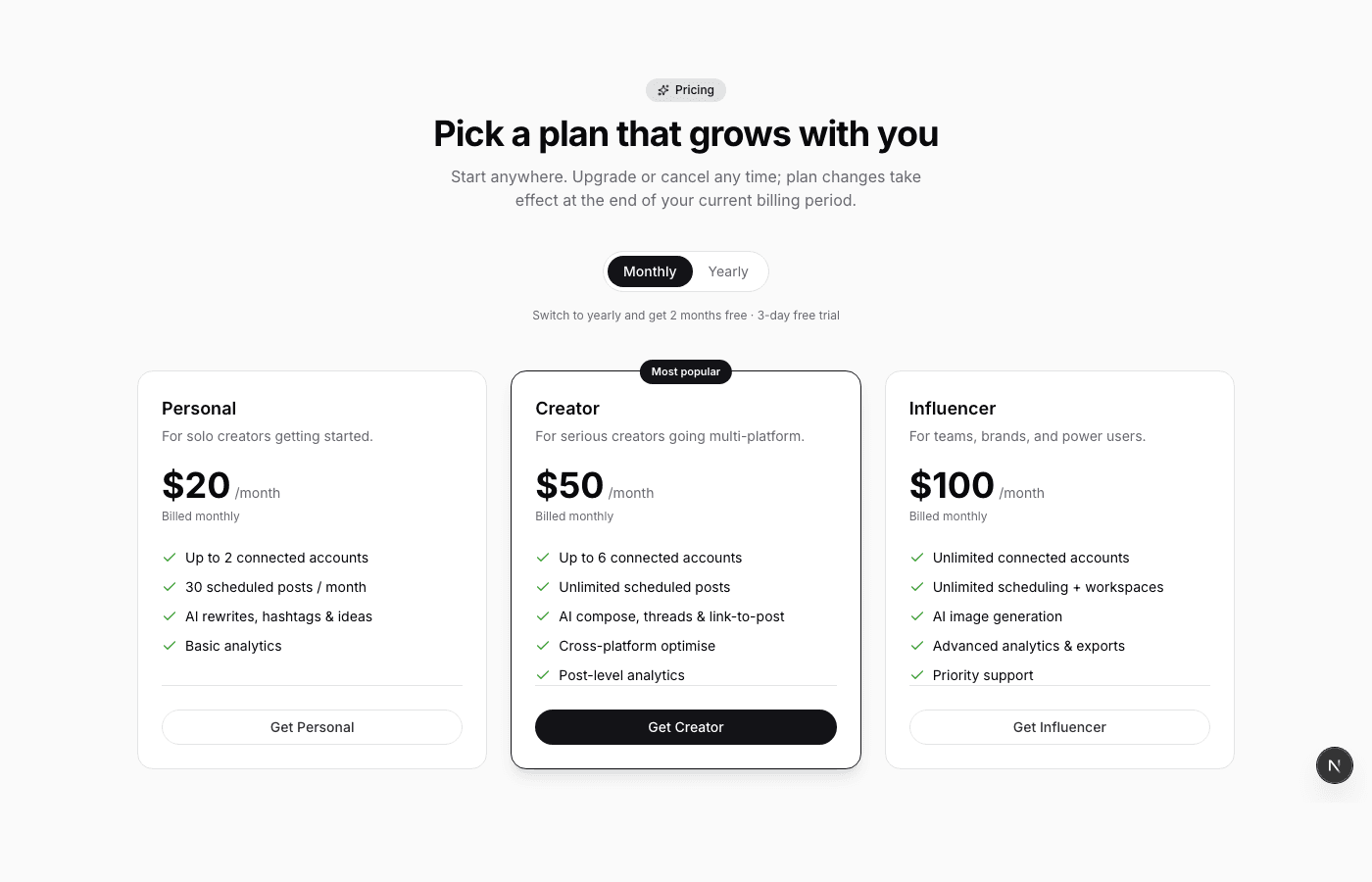
| Plan | Monthly | Workspaces | Best for |
|---|---|---|---|
| Solo | $19 | 1 | A single personal brand |
| Pro | $39 | 2 | Founder brand plus company brand |
| Max | $79 | Up to 5 | Portfolio operators, agencies of one |
You can upgrade, downgrade, or cancel at any time from the billing portal, reachable from Settings. See the full breakdown on the pricing page.
Habits that make the product click
- Retune your persona quarterly. Replace the example posts with your best from the last three months. Your voice evolves; the AI should track it.
- Never cross-post raw. Always run Optimise before shipping the same content to multiple platforms. Every platform rewards different pacing and hook shapes.
- Toggle Thread on X when you are long. If a post is creeping past 280 characters, split it. Threads outperform cut-off tweets.
- Use Inspiration as a warmup. Five minutes of skimming trends before you open the composer kills blank-page paralysis.
- Read the early engagement numbers. The first hour of likes, saves, and comments tells you more about your timing and audience fit than any day-later metric.
Beyond the app: blog, comparisons, and AI-friendly content
The product is one part of the surface. Three other places worth bookmarking:
- The SocialCRM blog for platform guides, posting playbooks, and the data behind our recommendations.
- The comparisons hub (Typefully, Buffer, Hootsuite, Hypefury, Postiz, Socialrails) for honest side-by-side write-ups.
- Every public page ships a machine-readable markdown variant: append
.mdto any URL or sendAccept: text/markdown. Powers ChatGPT, Claude, Perplexity, and Gemini citations of our content without HTML scraping.
Getting help and giving feedback
Every screen in the app has a small Feedback button in the header. Use it to flag a bug, request a feature, or just drop a note. The team reads every submission. The Learn / Help menu in the sidebar also links to this guide and a growing set of tutorials.
TL;DR
- Five core screens: Settings (connect accounts), Persona (train your voice), Composer (write with AI), Calendar (schedule), Analytics (measure).
- Five supported platforms: X, LinkedIn, Instagram, Threads, and Facebook, native publishing on each.
- Persona is the leverage point. Train it well and every AI draft ships unchanged.
- Three clicks to ship: Generate Post, pick a time, Schedule. Everything else is measurement and iteration.
- Free tools library handles one-off jobs (counters, generators, idea decks) without needing the full app or an account.
- Public surface: blog for tactics, comparisons for honest competitor breakdowns, and a markdown variant of every page for AI answer engines.
- Plans: Solo $19, Pro $39, Max $79 per month. 3-day free trial. Yearly billing saves two months.
Ready to try it? Head to the SocialCRM homepage, sign in, and run through the seven steps above. If you prefer to compare first, see our SocialCRM vs Typefully writeup.