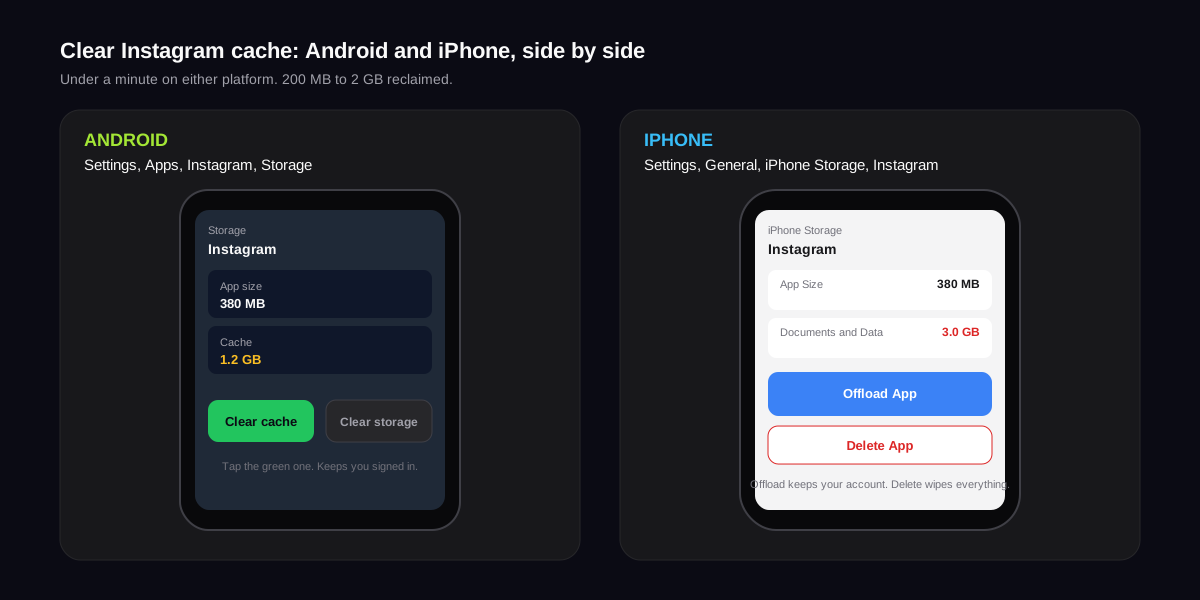
The short answer: to clear the Instagram cache on Android, open Settings, Apps, Instagram, Storage, Clear cache. On iPhone, Instagram has no in-app cache button, so the equivalent is Settings, General, iPhone Storage, Instagram, Offload App, which rebuilds the binary and wipes the temporary files while keeping your account signed in. On the web, clear site data for instagram.com inside your browser. The whole job takes under a minute on either platform and reclaims anywhere from 200 MB to 2 GB of storage.
What the Instagram cache actually stores
The cache is a hidden folder of temporary files Instagram saves to your phone so the next launch is fast. Every Reel, photo, Story cover, Explore thumbnail, sticker pack, audio clip, DM attachment, and font you scroll past gets dropped into that folder so the following view loads from disk instead of pulling fresh bytes from the network. Google publishes the official Android caching guidance that Instagram and every other large app follows.
The cache is not the same thing as your account data. Posts, DMs, Stories, Reels, followers, saved collections, and Close Friends lists all live on Instagram's servers. The cache only stores copies of stuff your phone already downloaded once, plus index files that help the app find them quickly. Clearing it never deletes anything that lives on the server.
Cache versus data versus storage
Android shows three numbers for every app: app size (the binary itself), user data (your logins, drafts, settings, and downloads), and cache (the temporary files above). The Clear cache button only touches the third number. The Clear data button (sometimes labelled Clear storage) wipes the second one too, which signs you out. The difference matters because most cache-related fixes do not need the bigger hammer.
How to clear Instagram cache on Android (step by step)
Android exposes a direct Clear cache button inside the system settings, which is the cleanest way to do it. The flow looks identical on Samsung, Pixel, OnePlus, and Xiaomi devices, with only the menu wording changing slightly. The whole sequence takes under 20 seconds.
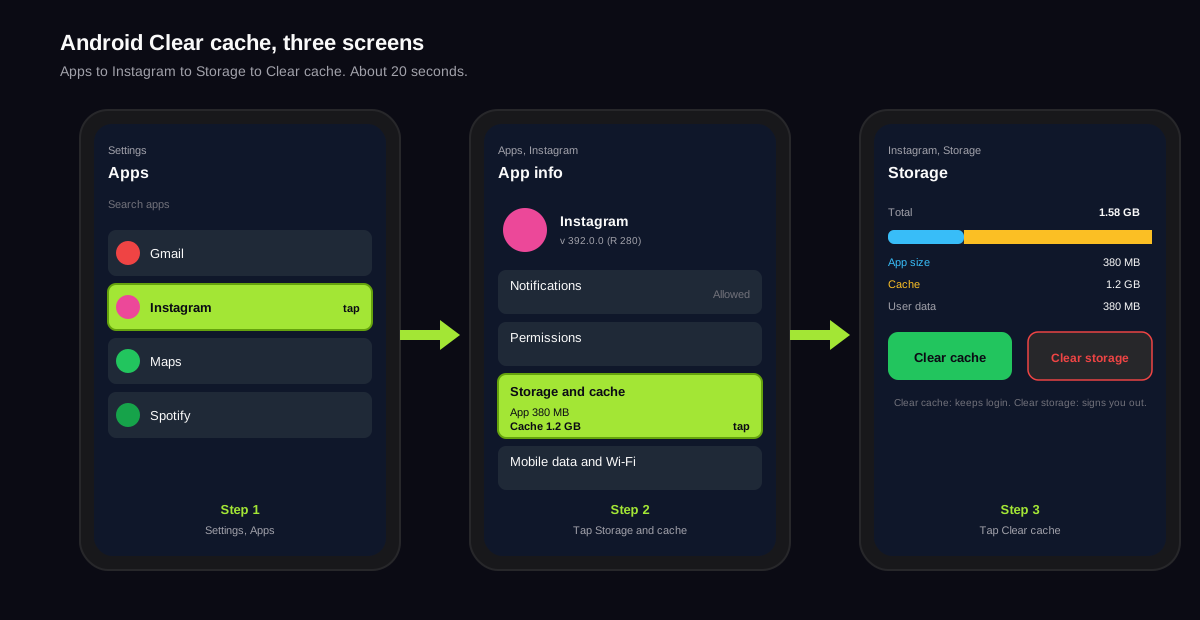
- Open Settings on your phone. Not inside Instagram. The gear icon on your home screen or app drawer.
- Tap Apps, or Apps and notifications on older Android versions, or Application manager on Samsung One UI.
- Scroll to Instagram and tap it. On a Pixel you may need to tap See all apps first.
- Tap Storage and cache. Some skins split this into Storage usage. You will see two numbers: App size and Cache.
- Tap Clear cache. The number drops to zero. You stay signed in. Drafts, downloads, and DM history are untouched.
Open Instagram immediately after. The first launch will feel slightly slow (5 to 15 seconds) because the app rebuilds its thumbnail index from the network. After that, the feed scrolls at full speed and the next 24 hours of viewing rebuild the cache you just cleared. If the lag was caused by a corrupted cache file, that single launch usually fixes it.
What changes after Clear cache on Android
- Stays the same: login, two-factor settings, your draft post, your downloaded reels, your saved Highlights covers, push notifications, and DM read state.
- Goes away: the local copy of every photo, Reel, Story, Explore tile, sticker pack, and font you downloaded by scrolling. They all redownload on next view.
- Side effect: the first Reel after Clear cache can buffer for 1 to 3 seconds while the audio and video are re-fetched. After that, everything caches again.
How to clear Instagram cache on iPhone
Apple does not let any third-party app surface a Clear cache button. Instagram has asked for this exposed API for years and has never received it, which is why Apple's iPhone Storage documentation recommends Offload App as the universal substitute. There are two reliable iPhone paths and a third that only works on the web version.
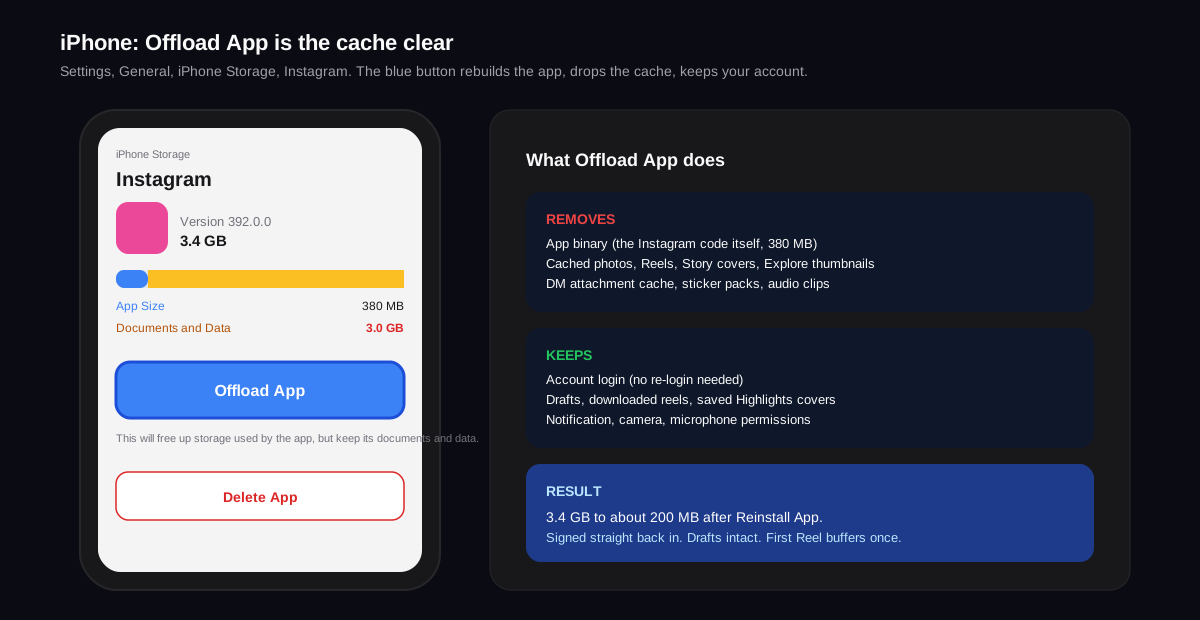
Method 1: Offload App (fastest, keeps account)
- Open the iOS Settings app.
- Tap General, then iPhone Storage. Wait a few seconds for the per-app sizes to load.
- Scroll to Instagram and tap it.
- Tap Offload App. The blue button removes the app binary and its cached files but keeps your account, login token, and any saved drafts.
- Tap Reinstall App. The same button changes to Reinstall App after the offload finishes. Instagram redownloads fresh, signs you straight back in, and the 3 GB of Documents and Data shrinks to about 200 MB.
Method 2: Delete and reinstall (deeper clean)
Long-press the Instagram icon on your home screen, tap Remove App, then Delete App. Open the App Store, search Instagram, tap Install. This wipes everything: cache, drafts, login, downloads, notification permissions. You will need to sign in and re-grant camera and microphone access. Use this if Offload App did not fix the symptom you cleared the cache for.
Method 3: Auto Offload Unused Apps
Inside Settings, App Store, toggle Offload Unused Apps on. iOS offloads any app that has not been opened in months, including Instagram if you go quiet. This is a passive option for people who run out of storage often, not a fix for current lag.
How to clear Instagram cache in a web browser
Using Instagram on instagram.com from a desktop or laptop builds a separate cache inside your browser. The native app cache does not touch it and vice versa. Clear the browser side when web Instagram is slow to load, when a Reel keeps stuttering on desktop, or when the site refuses to load after a long session.
- In Chrome: open Settings, Privacy and security, Cookies and other site data, See all site data and permissions. Search instagram.com, tap the trash icon, then Clear.
- In Safari: open Safari Settings, Privacy, Manage Website Data. Search instagram.com, click Remove, then Done. Restart Safari.
- In Firefox: open Settings, Privacy and Security, Cookies and Site Data, Manage Data. Search instagram.com, click Remove Selected, then Save Changes.
- In Edge: open Settings, Cookies and site permissions, Manage and delete cookies and site data, See all cookies and site data. Search instagram.com and Delete.
Clearing site data on the web signs you out of instagram.com. You will need your password and a two-factor code on the next sign in. Mobile sessions on your phone are not affected.
When clearing Instagram cache actually fixes the problem
Most Instagram problems are not cache problems. Knowing which symptoms a cache wipe actually fixes saves you 20 minutes of chasing the wrong lever. The matrix below maps the five most common complaints to the right fix.
| Symptom | Clear cache fixes it? | Better fix if it does not |
|---|---|---|
| Feed will not refresh | Often | Check Wi-Fi, restart phone |
| Reels stutter or buffer | Sometimes | Update Instagram, switch to mobile data |
| App crashes on launch | Often | Reinstall after Clear cache fails |
| Login loop or stuck on splash | Rarely | Reinstall, then reset password |
| Storage full warnings | Always (the point of the job) | Schedule a monthly clear |
| Story stickers will not load | Often | Update Instagram if it persists |
For deeper problems that look like cache but are not, our guide on knowing if someone blocked you on Instagram covers the missing-DM-thread case, and the active status guide covers the green dot misbehaving. Neither is a cache issue.
How big should the Instagram cache get
On a phone with 3 to 5 hours of weekly Instagram use, the cache sits between 300 MB and 1.2 GB. Heavy users (more than 90 minutes a day, mostly Reels and DMs) routinely hit 2 to 4 GB inside a month. The official Instagram Reels engineering blog confirms that Reels are pre-fetched several videos ahead in the feed so the next swipe is instant. That pre-fetch is the single biggest reason heavy Reels viewing balloons your cache.
- Under 500 MB: healthy. No action needed.
- 500 MB to 2 GB: normal range for daily users. Clear monthly if storage is tight.
- 2 to 5 GB: heavy Reels or DM use. Worth a monthly clear regardless of total phone storage.
- Over 5 GB: cache is probably corrupted or has orphan files. Clear cache first. If it returns above 5 GB inside a week, reinstall the app.
What the Instagram cache does not include
A few items often get blamed on cache and live somewhere else entirely. Knowing the difference stops you from clearing cache as a fix-all and missing the real lever.
Saved drafts
Draft posts live in Instagram's user data, not the cache. Clear cache keeps drafts. Clear storage on Android or a full reinstall on either platform deletes them. If a draft matters, publish or screenshot it before any reinstall.
Downloaded Reels and saved collections
Your saved Reels and saved-post collections live on Instagram's servers. They reappear after any cache or storage clear as soon as you sign back in. Reels you saved to your camera roll via the three-dot menu sit in your phone's gallery and are not touched by anything Instagram does.
Notification permissions
On iPhone, a full delete-and-reinstall resets your notification, camera, and microphone permissions. Clear cache and Offload App both keep them. If notifications stop after a deep reinstall, check iOS Settings, Notifications, Instagram and toggle Allow Notifications back on.
Cache clearing for SocialCRM scheduled posts
If you publish through SocialCRM, the cache on your phone has zero effect on scheduled posts. We push posts from our backend straight to Instagram's Graph API. The Instagram app on your phone is only the consumer surface. Clear cache as often as you like without breaking any scheduled drop. If a scheduled post failed and you are debugging from the phone, the cache is almost certainly not the cause. Check the SocialCRM dashboard for the API error first. If you are evaluating schedulers, our Buffer comparison covers how the publishing layer differs.
Common mistakes when clearing Instagram cache
- Hitting Clear storage instead of Clear cache. On Android, the two buttons sit side by side. Clear storage wipes your login and any in-progress drafts. Read the button before tapping.
- Deleting Instagram from iOS instead of Offload App. Both fix cache, but Delete App also resets notification and camera permissions you then have to re-grant.
- Clearing cache to fix slow Reels on weak Wi-Fi. Reels buffer because of network, not cache. Clear cache makes the next buffer worse, not better, because the pre-fetch is empty.
- Clearing every week. The cache is meant to be full. Clearing it weekly burns mobile data on the rebuild and slows the app every time you reopen it.
- Clearing cache to log out of one account. Use Settings, Log out from inside Instagram instead. Clearing the whole cache to sign out one of four added accounts is overkill.
FAQ
How do I clear the Instagram cache on my phone?
On Android, open Settings, tap Apps, select Instagram, tap Storage, then tap Clear cache. The whole flow takes four taps and frees roughly 200 MB to 2 GB. On iPhone, Instagram does not expose a Clear cache button, so the equivalent is Settings, General, iPhone Storage, Instagram, Offload App. Reinstalling Instagram from the App Store wipes the cache too.
Will clearing Instagram cache log me out?
On Android, Clear cache keeps you logged in. Clear storage or Clear data signs you out and removes saved drafts, downloads, and login info. On iPhone, Offload App keeps your account and documents but rebuilds the binary on reopen. A full reinstall on either platform forces a fresh login.
How often should I clear the Instagram cache?
Once a month is enough for most accounts. Clear sooner if Instagram is lagging, refusing to refresh, crashing on launch, eating more than 2 GB of storage, or behaving differently on Wi-Fi versus mobile data. Clearing it daily is unnecessary and slows the app on the next launch while it rebuilds the index.
Why does my Instagram cache get so big?
Instagram caches every photo, Reel, Story, Explore thumbnail, sticker, audio clip, and DM attachment you scroll past so the next view loads from disk instead of the network. Heavy Reels viewing and DM use are the biggest contributors. A single hour of Reels can add 300 to 600 MB to the cache.
Does clearing Instagram cache delete my photos or posts?
No. Your posts, Stories, DMs, followers, and saved collections live on Instagram's servers, not on your phone. Clearing the cache only wipes the temporary copies your phone keeps for speed. Everything reappears the next time you open the app and the data downloads again.
Is there a Clear cache button inside the Instagram app?
No. Instagram does not expose a cache-clearing control anywhere in its own settings on iOS or Android. The job lives one layer up, inside your phone's system settings. Anyone offering a third-party Clear Instagram cache app is either a wrapper around the same system path or a scam.
TL;DR
- On Android: Settings, Apps, Instagram, Storage, Clear cache. Four taps, no logout.
- On iPhone: Settings, General, iPhone Storage, Instagram, Offload App. Reinstall App keeps your account.
- On the web: clear site data for instagram.com inside your browser. Signs you out of the web only.
- Clear cache keeps logins, drafts, and downloads. Clear storage and full reinstall wipe them.
- Once a month is enough. Heavy Reels and DM users hit 2 to 4 GB inside a month and benefit from monthly clears.