The short answer: to unarchive a Story on Instagram, open your profile, tap the three-line menu in the top right, tap Archive, make sure Stories Archive is selected, tap the Story you want, then tap the three-dot More button and pick Add to Highlights, Share as Post, or Save Photo or Video. Instagram does not let you re-publish an old Story to the 24-hour ring; the unarchive flow always turns the Story into a Highlight, a feed post, or a download. The whole job takes under a minute on iOS, Android, or the web.
What unarchiving an Instagram Story actually means
Instagram archives every Story you post the moment its 24-hour window closes, then drops it into a private grid called Stories Archive. The Archive is invisible to everyone except you, it never notifies friends when you scroll through it, and it lives in the same hamburger menu where your settings sit. Unarchiving is the umbrella verb for pulling a Story back out of that grid and giving it a second life somewhere visible on your account.
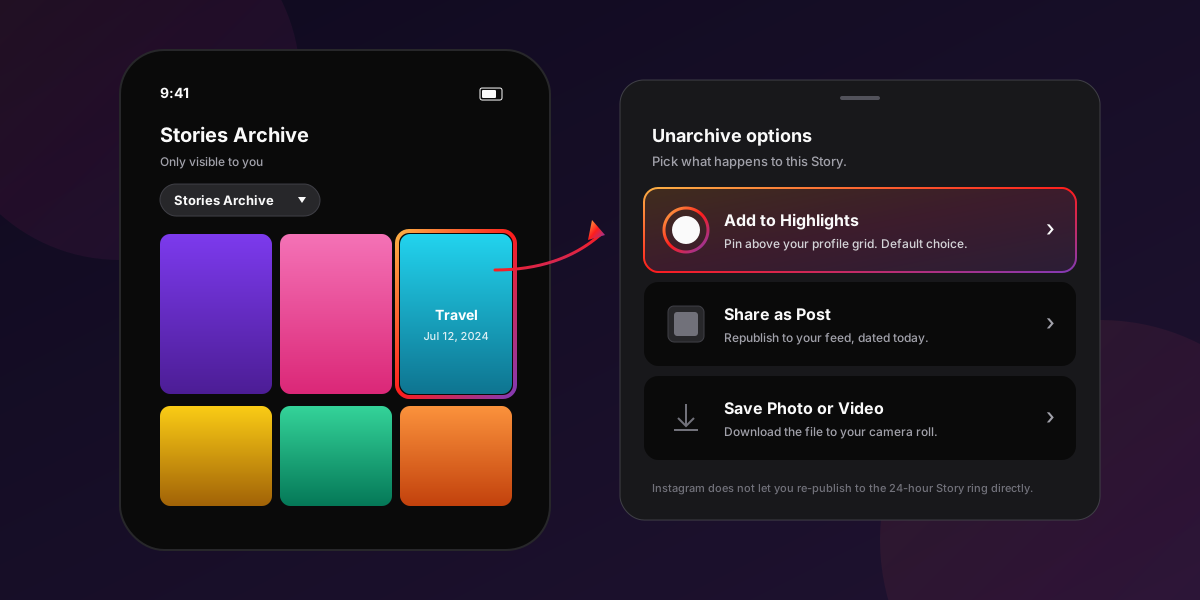
The catch most people miss: Instagram does not put an unarchived Story back onto the 24-hour ring at the top of your followers' feeds. That option used to exist as a Share Again button and Instagram quietly removed it in 2022. Today the unarchive flow ends at three buttons, and each one moves the Story to a different surface. Picking the right surface is the whole job, and we walk through each below.
Why Instagram archives Stories at all
Stories Archive ships on by default because the 24-hour countdown is the entire premise of the Story format, but creators wanted a way to revisit old content without exposing every drop publicly. Meta's own Instagram Help Center entry on Stories Archive confirms that the Archive is private to the account holder and designed for personal reference, Highlights creation, and feed re-shares. The Memories notification on the home screen, the one that pings you with a Story from a year ago, pulls from the same Archive.
How to unarchive a story on Instagram (step by step)
The five-tap flow is identical across iPhone, Android, and the Instagram web app. Only the icon positions move slightly: on the web, the three-line menu sits under your profile photo in the top-right corner; on mobile, it sits in the same corner of the profile tab. The whole sequence takes under 20 seconds once you know where the Archive lives.
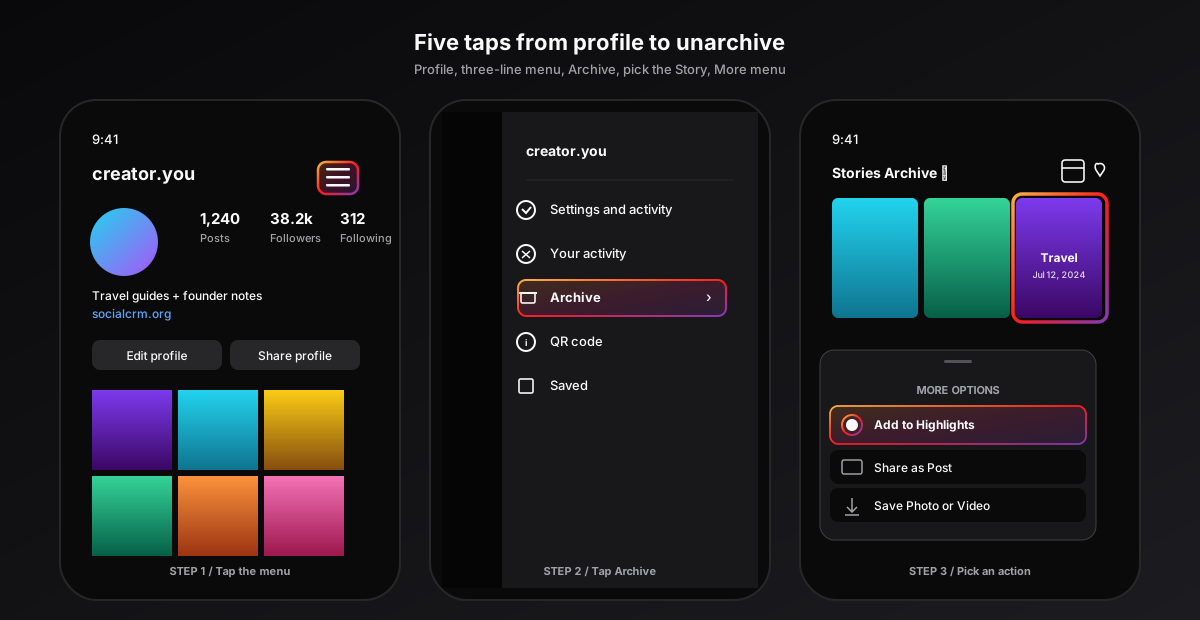
- Open Instagram and tap your profile picture in the bottom-right corner of the app. On the web, click your profile picture in the bottom-left sidebar.
- Tap the three-line menu in the top-right corner of your profile. The slide-out panel opens with Settings, Activity, Archive, and other options.
- Tap Archive. The grid that opens shows the last view you used: Stories Archive, Posts Archive, or Lives Archive. If it lands on Posts Archive, tap the dropdown at the top and switch to Stories Archive.
- Tap the Story you want to unarchive. It opens full-screen exactly like a regular Story would, with the same stickers, music, captions, and viewer count baked in.
- Tap the three-dot More button in the bottom-right corner. The action sheet that slides up gives you Add to Highlights, Share as Post, and Save Photo or Video. Pick the one you need; that single tap completes the unarchive.
For more on managing what stays visible on your profile, see our guide to hiding your followers list on Instagram and the active status guide that covers the same Settings and activity menu.
What each unarchive option actually does
The three buttons on the More sheet look similar but produce very different outcomes. Picking the wrong one is the most common mistake we see in support threads, so a quick side-by-side helps.
| Action | Where it appears | Keeps original date? | Visible to followers? |
|---|---|---|---|
| Add to Highlights | Highlight ring above your grid | Yes, original Story timestamp | Yes, until you remove it |
| Share as Post | Permanent feed post | No, uses today's date | Yes, immediately |
| Save Photo or Video | Your phone's camera roll | Original capture date | No, until you re-post |
Add to Highlights
Add to Highlights is the default unarchive path because it keeps the Story permanently visible on your profile without creating a new feed post. Tap the button, pick an existing Highlight, or tap the plus sign to create a new one. The Story appears in the ring above your grid in chronological order, and tapping it plays the original media with the original stickers and music intact.
Share as Post
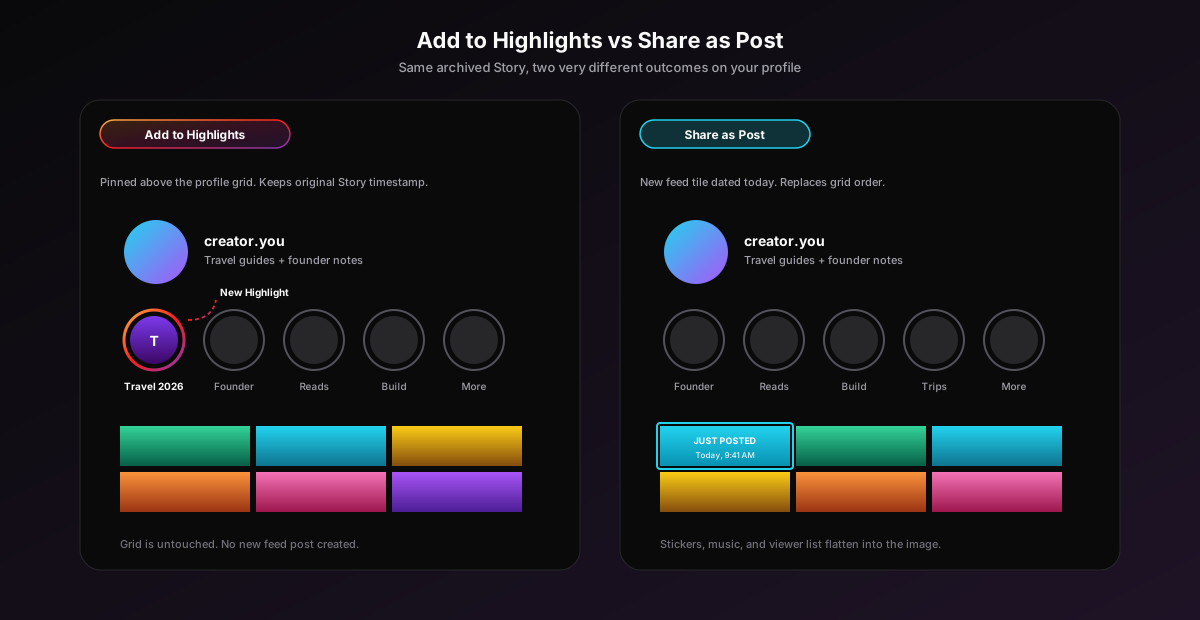
Share as Post takes the Story and rewrites it as a permanent feed post. The text, drawings, and sticker layout are baked into the image; viewers cannot tap stickers or replay music. The post takes today's date and timestamp, so it sits at the top of your grid until your next upload. This is the right choice when an old Story performed unusually well and you want it discoverable in search and the Explore tab, neither of which index Stories or Highlights.
Save Photo or Video
Save Photo or Video downloads the Story to your camera roll as a plain MP4 or JPG with the original timestamp metadata. Use this when you want the raw asset back, when you plan to repurpose the media on another platform, or when you want to re-post the Story to your 24-hour ring (which Instagram blocks directly). Open your camera roll, tap your profile, tap the plus icon, pick Story, then select the file you just saved.
How to find a specific archived Story
The Stories Archive grid shows everything in reverse chronological order, which is fine if you posted the Story last week and catastrophic if you are looking for one from 2023. Instagram ships two filters that almost nobody uses: a calendar view and a map view, both reached from the small icon row at the top of the Archive screen.
- Calendar view. Tap the calendar icon in the top right of the Archive grid. Stories appear as thumbnails inside a month-by-month grid; scroll up to jump back in time by month. Faster than scrolling the chronological grid past 1,000 entries.
- Map view. Tap the pin icon to switch to a world map. Stories with location stickers attached appear as pins; tap a pin to open every Story tagged at that place. Only useful if you tag locations regularly.
- Memories. Instagram pushes a Memories card to the top of your home feed when an archived Story turns one, two, three, or more years old. Tap the card to open the Story directly, then follow the same More menu flow to unarchive it.
How to turn Save Story to Archive on or off
If the Stories Archive is empty when it should not be, the most likely cause is that Save Story to Archive was switched off when you posted. The toggle is on by default, but it gets flipped accidentally inside the Privacy menu more often than Meta would like. The fix takes four taps.
- Tap your profile picture, then the three-line menu in the top right.
- Tap Settings and activity.
- Scroll to the For professional accounts or What you see section, then tap Story. Personal accounts find the same Story row under Settings and activity directly.
- Toggle Save Story to Archive on. Every Story you post from now on auto-archives after 24 hours. Stories you already posted while the toggle was off are not recoverable; Instagram does not back-fill the Archive.
While you are in the Story settings, also check Save Story to Camera Roll. With that on, every Story drops to your phone immediately on publish, which is its own permanent backup independent of Instagram's Archive. We recommend both toggles on for any creator account.
Stories Archive vs Posts Archive vs Lives Archive
Instagram bundles three different archive types behind the same Archive menu, and the dropdown at the top of the screen switches between them. They behave differently and the unarchive flow is not the same for each.
- Stories Archive stores expired 24-hour Stories. Unarchive ends in Add to Highlights, Share as Post, or Save. The grid lives forever and never trims itself; Instagram has confirmed there is no upper limit.
- Posts Archive stores feed posts you manually archived from the three-dot menu on a post. Unarchive only puts the post back in your grid in its original chronological slot; there is no Highlights or Save flow because the post already exists on the server.
- Lives Archive stores Instagram Live broadcasts longer than one minute that ended within the last 30 days. Unarchive routes to Share to feed or Download; nothing else. The 30-day expiry is the only auto-trim Instagram runs on any archive surface, so download anything you want to keep before the timer ends.
For more on the wider set of Instagram privacy and content toggles, see our vanish mode guide and the location settings walkthrough.
Why an archived Story might be missing
The most frustrating Archive bug is opening Stories Archive and finding a Story you remember posting is simply not there. Nine out of ten cases trace back to one of the five causes below.
- Save Story to Archive was off at the time. The toggle only affects Stories you post going forward. Stories posted while it was off are not recoverable and the Archive does not back-fill when you flip it back on. This is the single most common cause.
- You deleted the Story manually. If you tapped the three-dot menu and Delete inside the 24-hour window, Instagram removes it from the live ring and skips the Archive entirely. Deleted Stories are not recoverable from any surface.
- The account was deactivated. Temporary deactivation hides the Archive grid until the account is reactivated. The Stories themselves are preserved; they reappear when you log back in.
- You switched to a Professional account or back to a Personal one. The Archive carries over, but the Settings menu reshuffles, and the Stories filter sometimes defaults to Posts Archive after a profile-type switch.
- You are on the wrong account. If you manage two or more accounts from the same app, the Archive is per-account. Tap your username at the top of the profile to switch and check the other account.
When unarchiving fails or shows the wrong Story
Two failure modes account for almost every unarchive complaint on the r/Instagram subreddit: the Archive shows the wrong Story when you tap Add to Highlights, or the Highlight you create disappears from your profile within minutes. Both are usually cache problems, not Archive problems.
For the wrong-Story bug, close Instagram fully (swipe up from the app switcher on iOS, swipe away on Android), reopen, and try the Archive again. If it persists, follow our guide on clearing the Instagram cache and re-launch. The Archive thumbnail index is one of the most cache-heavy surfaces in the app; a stale cache routinely shows last week's thumbnails on this week's tap.
For the disappearing-Highlight bug, give it two to five minutes before declaring it broken. Instagram propagates new Highlights to its CDN edge nodes asynchronously, and the first refresh of your profile after a Highlight create can briefly show the old ring. Refresh your profile by pulling down on the grid; the new Highlight should appear in the ring within a single refresh.
Common mistakes when unarchiving Instagram Stories
- Tapping Share as Post when you meant Highlight. Share as Post creates a permanent feed entry dated today. If you only meant to surface the Story on your profile, delete the feed post and use Add to Highlights instead.
- Expecting the original viewer list to appear. Add to Highlights preserves the original viewer count number, but the viewer list itself is wiped 48 hours after the Story first expired, per Meta's data retention rules. Anyone who views the Highlight after that is added to a fresh viewer list separate from the Story's.
- Looking for a Share Again button on the live Story ring. It does not exist anymore. The only way to re-publish an old Story to your 24-hour ring is Save Photo or Video, then post the saved file as a brand new Story from your camera roll.
- Turning Save Story to Archive off to free storage. Stories Archive lives on Instagram's servers, not on your phone. The toggle has zero impact on local storage. If you want to free phone storage, clearing the Instagram cache is the right lever, not Archive.
- Adding a Story to multiple Highlights and forgetting it. A single Story can sit inside any number of Highlights. Removing it from one does not remove it from the others; you have to edit each Highlight separately. Use the map view to spot duplicates.
Unarchiving Stories from SocialCRM
If you publish Stories through SocialCRM, every Story you ship lands in the same Stories Archive as Stories you post natively. The Archive UI is Instagram's, not ours, so unarchiving follows the same flow as any other Story. The one place SocialCRM helps is finding the original media: open the SocialCRM dashboard, filter to Instagram Stories in the last 12 months, and every published Story comes back with the source asset, caption, and engagement snapshot already attached. If you are evaluating schedulers, our Buffer comparison covers the Story-specific publishing differences.
FAQ
How do I unarchive a story on Instagram?
Open Instagram, tap your profile picture, tap the three-line menu in the top right, then tap Archive. Make sure Stories Archive is selected at the top. Tap the Story you want to unarchive, tap the three-dot More button, then pick Add to Highlights, Share as Post, or Save Photo or Video. Instagram does not let you re-publish a Story directly to the 24-hour ring.
Why are my Instagram Stories not showing in Archive?
The most common reason is that Save Story to Archive was switched off when you posted. The toggle only affects Stories you post going forward and Instagram does not back-fill the Archive. The second reason is that you deleted the Story manually inside the 24-hour window; manual deletes skip the Archive entirely. Switch the toggle on under Settings and activity, Story to fix the first one.
Can I repost an old Instagram Story to my Story again?
Not directly. Instagram removed the Share Again button in 2022. The closest workaround is to open the archived Story, tap Save Photo or Video to download it to your camera roll, then post it as a brand new Story. The new Story does not carry the original timestamp, sticker interactions, or viewer list. If you only want it visible on your profile, Add to Highlights is the right path.
Can other people see my archived Instagram Stories?
No. Stories Archive is private to your account and visible only to you. It never appears on your profile and never sends a notification when you scroll through it. The only time an archived Story becomes public is when you turn it into a Highlight or share it as a feed post. Until then, only you can see it.
What is the difference between unarchive and Add to Highlights?
Unarchive is the umbrella verb for pulling a Story out of the private Archive grid. Add to Highlights is one of three things you can do after you find it. The other two are Share as Post, which republishes the Story as a permanent feed post, and Save Photo or Video, which downloads the file. Add to Highlights is the most common because it keeps the Story visible above your profile grid without becoming a new feed post.
Does unarchiving send a notification to followers?
No. None of the three unarchive actions trigger a notification. Add to Highlights silently updates the Highlight ring above your grid, Share as Post creates a feed post that appears in followers feeds organically the next time the algorithm surfaces it, and Save downloads the file without any social side effect. Followers only see new content; they are never told it came from your Archive.
TL;DR
- Profile, three-line menu, Archive, Stories Archive, tap the Story, three-dot More, pick one action. Under 20 seconds.
- Three unarchive options: Add to Highlights (profile ring), Share as Post (new feed post), Save Photo or Video (camera roll).
- Instagram removed the Share Again button in 2022. To re-post to the 24-hour ring, Save first, then publish from your camera roll.
- Stories Archive is private. No one else sees it; no notification ever fires when you browse it.
- If the Archive is empty, Save Story to Archive was off when you posted. Flip it on under Settings and activity, Story for future Stories.