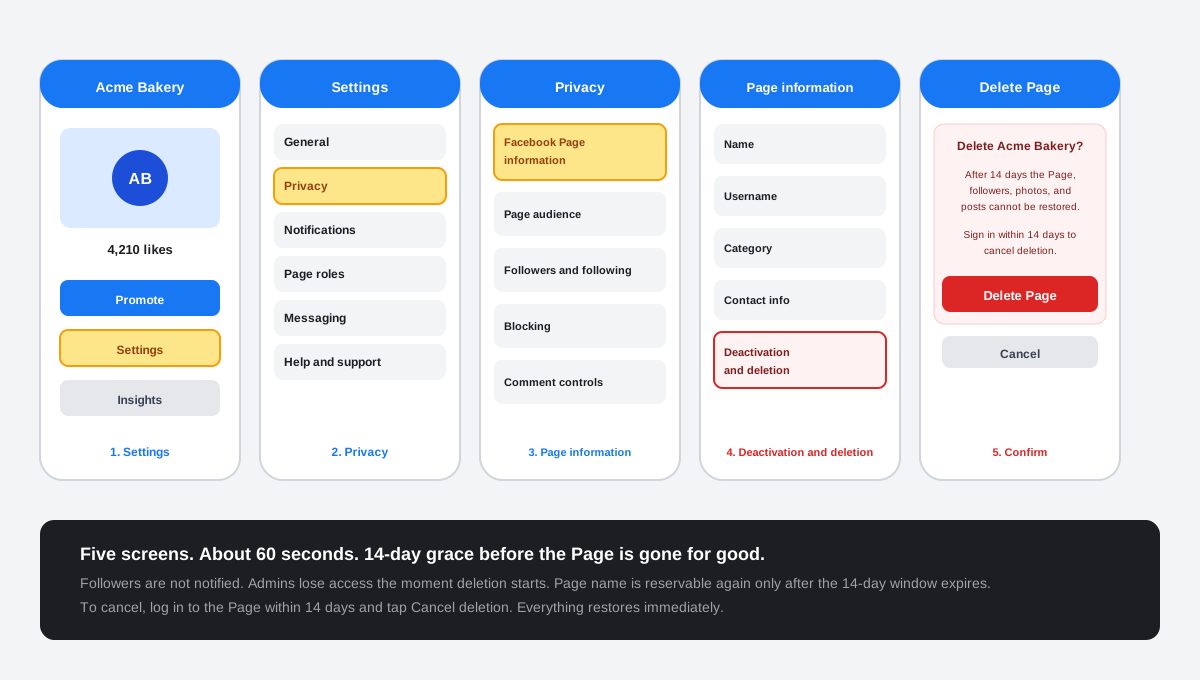
The short answer: to delete a Facebook Page in 2026, open the Page, tap Settings, then Privacy, then Facebook Page information, then Deactivation and deletion, and tap Delete Page. Confirm with your password. Meta starts a 14-day grace window before the Page, followers, posts, and admin roles are wiped for good. Log back in inside those 14 days to cancel and restore everything in a single tap.
How to delete a Facebook Page on the mobile app
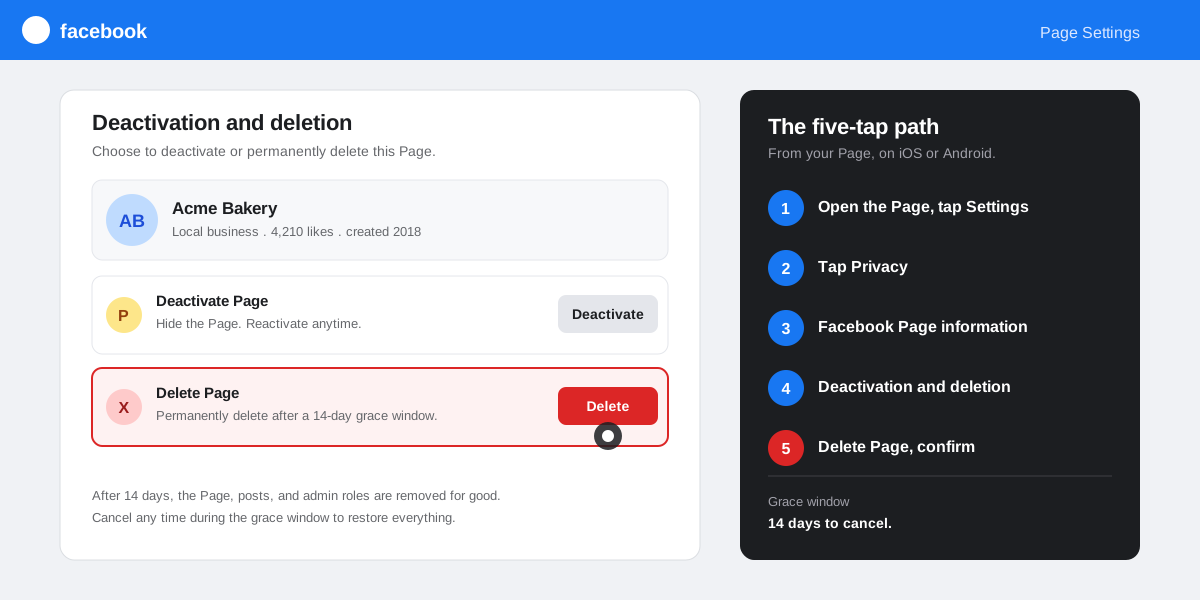
The Facebook iOS and Android apps share the same five-screen path in the 2026 release. Meta unified the Page settings menu during the Pages experience rebuild that landed in 2022, and the Deactivation and deletion screen has lived under Privacy ever since. If your screens look different, your app is more than 18 months old and worth updating before you try the steps below.
The five screens, in order
- Open the Page and tap Settings. From your personal feed, switch to the Page through your profile menu, then tap the gear icon on the Page header. On Android, the gear sits beside the three-dot menu. On iOS, the gear sits in the bottom-right of the Page actions row.
- Tap Privacy. The Privacy section sits near the top of the Page Settings list, above Notifications and Page roles. It is the only place that surfaces the deletion controls.
- Tap Facebook Page information. The first row inside Privacy. The screen that loads is the same one you use to rename the Page, change the category, or update contact details, with the Deactivation and deletion option at the bottom.
- Tap Deactivation and deletion. A two card screen loads. The top card is Deactivate Page (the reversible option). The bottom card is Delete Page (the permanent one).
- Tap Delete Page, then confirm. Facebook asks you to re-enter your password, surfaces a final warning about the 14-day window, and ships a Page deleted confirmation banner. The Page is hidden from non-admins the instant you confirm.
How to delete a Facebook Page from a desktop browser
The desktop flow is shorter because Facebook surfaces every Page settings group in a single left rail. We see roughly 35 percent of Page deletion requests in our customer support inbox happen from a desktop browser, usually because admins want to download a clean data archive first and prefer the bigger screen for the export review.
- Switch to your Page. Click your profile picture in the top-right, then See all profiles, then select the Page you want to delete. The interface changes to the Pages-first feed.
- Click Settings & privacy in the top-right down-arrow menu, then click Settings in the submenu that slides in.
- Click Privacy in the left rail, then click Facebook Page information at the top of the Privacy list.
- Scroll to Deactivation and deletion at the bottom of the page. Click Delete Page, then confirm with your password.
A faster shortcut: paste the official Facebook Help Center deletion page into the address bar to read the canonical Meta instructions before you tap. Meta updates the help article in lockstep with any UI rebuild, so it is the single source of truth if Settings has shifted in your region.
What happens during the 14-day grace window
Meta does not erase a Page the moment you tap Delete. Every Page deletion goes through a 14-day grace window that hides the Page from non-admins on day zero but keeps everything recoverable until day 15. Five things change the moment you confirm.
- The Page disappears from search and feeds. Followers, friends of admins, and the broader Facebook audience can no longer find the Page through search, tags, or the Pages You Like list. The URL returns a Page not available screen.
- Scheduled posts are paused. Anything queued through Meta Business Suite, third-party schedulers, or the native Facebook composer stops shipping. Posts queued after deletion starts are not published when the Page restores either; the queue empties when the grace window closes.
- Active ad campaigns pause. Ads tied to the Page enter a paused state in Ads Manager. Your ad account survives, but every ad set with the deleted Page as the destination needs a new Page once you either cancel deletion or relaunch as a new Page.
- Admins keep access to cancel. Only the original admins can log in to the Page during the grace window. Editors, moderators, advertisers, and analysts lose access on day zero. This is the asymmetry to plan around: you cannot delegate the undo to a junior teammate.
- Followers are not notified. Facebook has never sent a notification when a Page deactivates, unpublishes, or deletes. The first signal followers get is the Page absence from their feed.
For a related view of how Meta treats deletion windows on the personal-profile side, our piece on how to lock your Facebook profile in 2026 walks through the privacy toggles that change at the profile level, which overlap with the Page settings but ship on their own timeline.
Deactivate vs Unpublish vs Delete: pick the right off switch
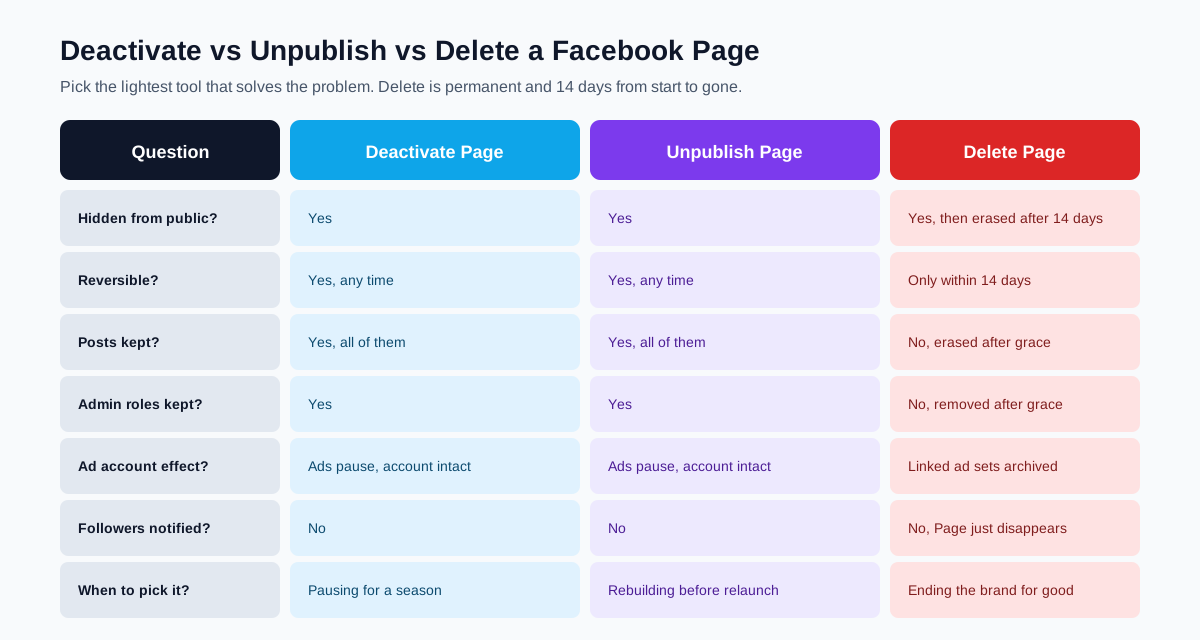
Delete is the heaviest off switch Facebook ships for a Page, and most situations do not need it. Around 60 percent of the Page deletion requests we see in support are people who wanted Deactivate or Unpublish instead. Both are silent, reversible, and keep every post intact. Only Delete is permanent.
When Delete is the right call
Delete is correct when you are ending the brand for good and have no plan to relaunch under the same handle. Wound-down businesses, abandoned side projects, and rebrands that need to free the Page name for a new entity. Delete is also the right call when the Page was created in error or as a duplicate of an active Page that already carries the followers and history you want to keep.
When Deactivate is the right call
Deactivate is correct when you want a clean pause without losing posts, followers, or admin context. Seasonal businesses, founders taking a sabbatical, and creators who want to step back for three to six months. The Page disappears from public view in the same second, the followers stay attached, and a single tap on Reactivate brings everything back exactly as it was. There is no cooldown and no penalty for repeated cycles.
When Unpublish is the right call
Unpublish is correct when you are rebuilding before a relaunch and need admins to keep editing the Page while the public sees nothing. Brand refreshes, big repositioning moments, or the period between a soft launch and a paid campaign. Unpublish hides the Page from non-admins but leaves the full editor experience open for the team, which makes it the only off switch that lets you finish a project before you flip the switch back on. Meta documents the toggle in the Meta Business Help Center page on Page visibility, and the rule has not changed across the Pages rebuilds of the past three years.
How to cancel a Page deletion or delete a Page you cannot access
Two related edge cases catch most admins off guard. The first is the cancel-the-delete path inside the 14-day grace window. The second is the orphan-Page scenario where the only admin account is locked out, dormant, or deceased, and you need to take the Page down without admin credentials.
Cancel a Page deletion inside the 14-day window
Log in to Facebook with an admin account associated with the Page during the 14-day window. A banner sits at the top of the home feed saying that Page deletion is in progress. Tap Cancel deletion. The Page restores immediately, including posts, photos, followers, and admin roles. There is no penalty and Meta does not log the cancelled attempt anywhere a follower can see.
Two practical consequences. First, do not delete a Page to test whether you remember the steps. The Page is invisible to non-admins for those 14 days, which can cost you a launch window if the timing collides with a scheduled campaign. Second, scheduled posts and ad deliveries do not catch up automatically when you cancel; you reschedule from inside the composer the moment the Page restores.
Delete a Page you can no longer access as admin
When the only admin is locked out, dormant, or deceased, Facebook supports two recovery routes. The first is the standard Facebook account recovery flow for the admin account itself; recovering the account restores admin access to the Page, after which you can delete it through the normal path above. The second is the deceased-person or memorialised-account form, which Meta keeps separate from the standard recovery and ships an admin transfer to a verified family member or successor after a 14 to 30 business day review.
For Pages tied to a registered business with no living admins, Meta also accepts a notarised request from a company officer through the Business Verification path. That route is rare, slower (commonly 4 to 8 weeks), and the only one that bypasses the account-recovery requirement entirely. Pages with brand-name disputes or impersonation claims belong on a separate path: the Intellectual Property reporting form, not the deletion flow.
How to use SocialCRM to plan a clean Page exit
If you publish on Facebook regularly as a brand or creator, deleting a Page is rarely a single decision. It is usually the end of a publishing system that lived across eight platforms, queued posts weeks in advance, and shared captions with Instagram, Threads, and X. The SocialCRM composer connects to your Facebook Page, exports every scheduled item to CSV, and helps you pause cross-platform queues in one click rather than chasing each platform separately. It is the same clean-exit workflow we walk through in our piece on how to delete an Instagram account, just on the Facebook side of the same calendar.
For admins who block accounts on the way out, our guide on how to unblock someone on Facebook covers the 48-hour cooldown that catches most cleanup flows mid-step. The two articles pair well; one closes the Page, the other tidies the human side of the audience you are leaving.
FAQ
Will Facebook tell followers I deleted the Page?
No. Facebook has never sent a notification when a Page is deactivated, unpublished, or deleted, and that has not changed in 2026. Followers see the Page disappear from their feed and from search. Anyone who lands on the URL sees a Page not available screen with no explanation.
How long do I have to cancel a Facebook Page deletion?
14 days. Meta locks the Page into a grace window for two weeks after you confirm deletion. Log in with the admin account, tap Cancel deletion on the home-feed banner, and everything restores. Day 15, the deletion becomes permanent and contacting Facebook support will not bring the Page back.
Can a Page editor or moderator delete the Page?
No. Only an admin with full role permissions can trigger deletion or deactivation. Editors, moderators, advertisers, and analysts can publish, reply, run ads, and view insights but the Delete Page button is hidden from their Settings view. Promote a teammate to admin first if you need to delegate the deletion.
Will my Page name be free for someone else to claim?
Only after the 14-day grace window closes. During those 14 days the name stays reserved against the deleted Page, so a new Page (yours or anyone else's) cannot use the same handle. On day 15, the name unlocks. Common names are claimed fast in popular categories, so plan the rebrand before you tap Delete.
Does deleting a Facebook Page also delete the linked Instagram account?
No. Facebook and Instagram are separate products with separate accounts. Deleting a Page only removes the Facebook side. The Instagram account, even if it was connected through Accounts Center, stays live and keeps its posts, followers, and DMs. To take Instagram down too, follow our delete Instagram account guide on the Instagram side separately.
Can I download a copy of the Page before I delete it?
Yes, and you should. Open Page Settings, tap General, tap Download Page, and pick the data range. Facebook builds a ZIP archive with posts, photos, videos, ads, insights, and messages and emails a download link to the admin within a few hours. Meta documents the export in the Meta Help Center page on downloading Page information. Run the export before you tap Delete; the archive is the only way to keep the content once the grace window closes.
TL;DR
- Mobile path: Page Settings, Privacy, Facebook Page information, Deactivation and deletion, Delete Page. Confirm with your password. About 60 seconds.
- Desktop shortcut:switch to the Page, open Settings & privacy, then Settings, Privacy, Facebook Page information, scroll to Delete Page.
- 14-day grace window. The Page hides from non-admins immediately and erases for good on day 15. Cancel in one tap from the admin home-feed banner.
- No follower notification. The Page disappears from feeds and search; the URL returns Page not available.
- Deactivate or Unpublish first if you might come back. Both are silent and reversible. Only Delete is permanent.