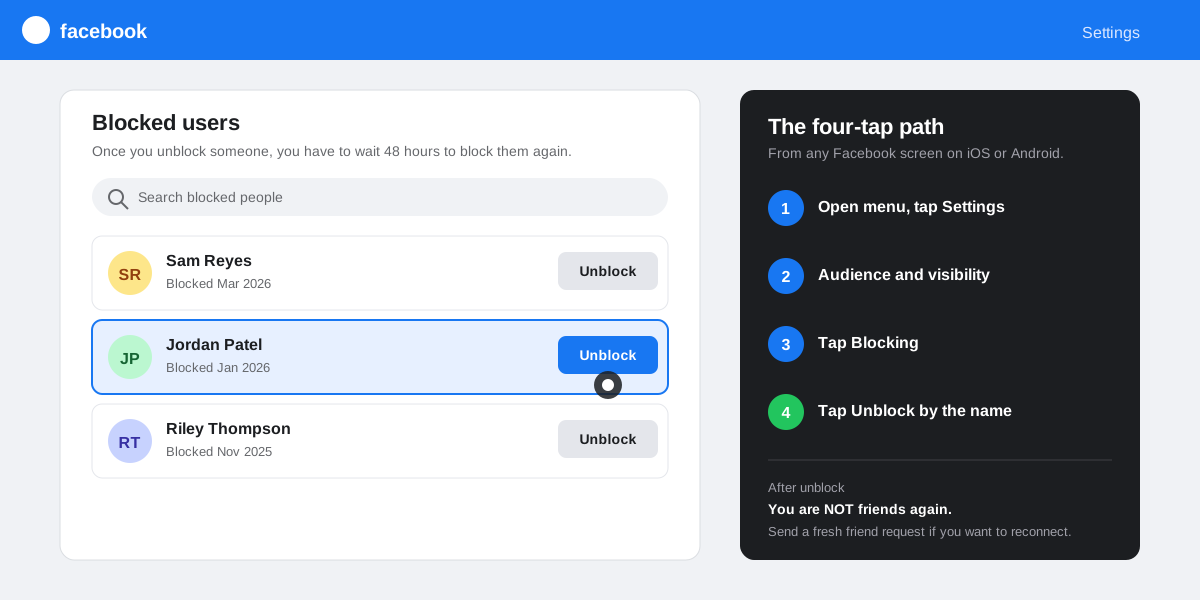
The short answer:to unblock someone on Facebook in 2026, open the menu, tap Settings & privacy, then Settings, then Audience and visibility, then Blocking, and tap Unblock next to the name. The whole flow takes about 30 seconds on iOS or Android. The person is not notified, you are not auto-refriended, and Facebook enforces a 48-hour wait before you can re-block the same account.
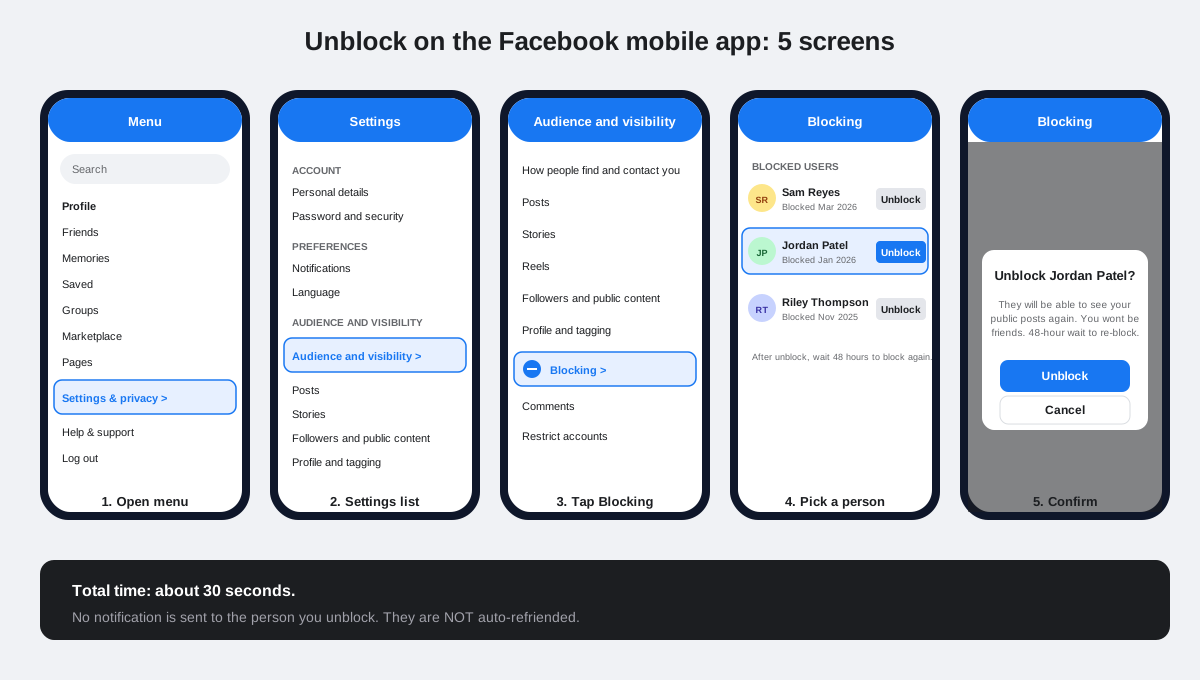
How to unblock someone on Facebook on the mobile app
The Facebook iOS and Android apps share the same five-screen path in the 2026 release. The wording is identical on both platforms because Meta unified the Settings menu in the Accounts Center rebuild that landed in 2023, and the Blocking section has not moved since. If your screens look different, your app is more than 12 months old and worth updating.
The five screens, in order
- Open the menu.Tap your profile picture in the bottom-right tab bar (iOS) or the hamburger icon in the top-right (Android), then scroll to Settings & privacy.
- Tap Settings.The first row inside Settings & privacy. This opens the full preferences list grouped by Account, Preferences, Audience and visibility, and a few more sections.
- Tap Audience and visibility. About halfway down the Settings list. This is where every who-can-see-what control lives.
- Tap Blocking. The Blocking row carries a small lock icon. Inside, you see Blocked users at the top of the list, with a search bar above the list of accounts you have blocked.
- Tap Unblock next to the name, then Unblock again to confirm. The confirmation modal warns you about the 48-hour wait before you can re-block the same person. Tap Unblock to finalise.
How to unblock someone on Facebook on a desktop browser
The desktop flow is shorter because Facebook surfaces Privacy Shortcuts directly from the down-arrow menu in the top-right of every page. We see roughly 20 percent of the unblock requests in our customer support inbox happen from a desktop browser, usually because someone wants to type the name they are searching for instead of swiping through a long blocked list on a phone.
- Click the down-arrow icon in the top-right corner of any Facebook page.
- Click Settings & privacy. Then Settings in the submenu that slides in.
- Click Audience and visibility in the left column.
- Click Blocking. The blocked list loads on the right with a search field above it.
- Click Unblock next to the name, then confirm in the dialog. The page refreshes and the person disappears from the blocked list.
A faster shortcut: paste facebook.com/settings?tab=blocking into the address bar to land directly on the Blocking page and skip the menu trail. The shortcut has worked since 2018 and Meta has not deprecated it through any of the Settings rebuilds.
What changes when you unblock someone on Facebook
Unblocking restores none of the connection that existed before the block. Facebook treats Unblock as a fresh start between two unconnected accounts, not as a rollback. Five things change the moment you confirm.
- They can find your profile in search again, send a friend request, follow you if your account is public, and see anything you have set to Public.
- You can see their profile from your account again. Before unblocking, their profile returned a blank page from your view too.
- You are not friends. Blocking removes the friend edge in the social graph and unblocking does not put it back. If either side wants to reconnect, one of you sends a new friend request.
- Old comments, likes, and tags do not return. Anything they had liked or commented on before you blocked them was hidden when you blocked, and stays hidden after the unblock. Re-engagement starts fresh.
- Messenger reopens too. Block on Facebook blocks across Messenger by default. Unblocking on Facebook unblocks Messenger in the same step. We cover the edge cases in the Messenger section below.
For a deeper look at how Facebook treats privacy state at the profile level, our guide on how to lock your Facebook profile in 2026 walks through the seven privacy settings the Lock Profile feature flips at once and how it overlaps with blocking rules.
Why Facebook makes you wait 48 hours to re-block
After you unblock someone on Facebook, you cannot block the same account for 48 hours. Meta documents this rule in the official Facebook Help Center page on blocking, framed as a safety guardrail against repeated block and unblock cycles that can be a vector for harassment in either direction.
Two practical consequences. First, do not unblock to test whether you remember a person correctly, then re-block. That is the most common mistake we see, and it leaves you exposed for two days. Second, if you want to send a quick message to the unblocked person and then sever ties again, the message has to wait for the 48-hour window to expire before you can re-block.
Restrict, by contrast, has no cooldown. Restrict and unrestrict can flip back and forth instantly because nothing in the social graph changes. That makes it a much better tool for the case where you want quiet right now but might want the connection back next week. We compare the three tools side by side later in this guide.
How to find your full Facebook block list
The same path that unblocks one person shows the full block list. On mobile, that is Settings, Audience and visibility, Blocking. On desktop, facebook.com/settings?tab=blocking opens the same view directly. The list is sorted by block date, newest first, with a search field at the top so you can jump to a specific name.
Audit your block list once a year. Most people we talk to carry old blocks from accounts they have not thought about in two or three years, often from the platform's early-2010s harassment era when blocking was the only privacy tool on the menu. Many of those blocks are now better served by Restrict (for relatives) or by an unfriend (for ex-coworkers). Our piece on how privacy settings actually work on Instagram private accounts gives the same audit treatment to Instagram and is worth running in parallel if you keep a presence on both.
How unblocking on Facebook differs from Messenger
Messenger is its own product with its own block list, but the two are linked by default. When you block someone on Facebook, Messenger blocks them in the same action. Unblocking on Facebook unblocks Messenger too.
The asymmetry runs the other way. You can block someone on Messenger only (a Messenger-only contact, an SMS sender, an Instagram account if you have linked the inboxes through Accounts Center) without affecting Facebook, because that account may not be a Facebook friend in the first place. Meta documents the split in the Messenger blocking help page, and the rule applies whether you use Messenger as a standalone app or inside Facebook Lite.
To audit Messenger separately, open Messenger, tap your profile picture, then Privacy & safety, then Blocked accounts. The list is independent from the Facebook block list and shows anyone you have blocked at the message level only.
Block vs Restrict vs Unfriend: pick the lightest tool
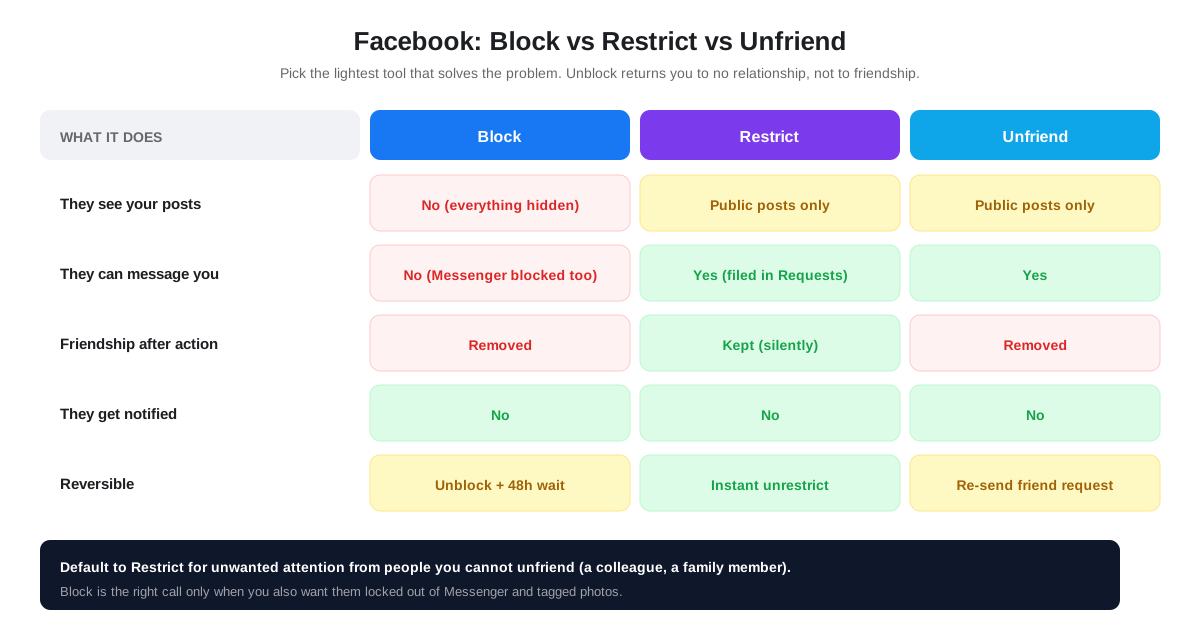
Block is the heaviest privacy tool Facebook ships, and most situations do not need it. Two thirds of the unblock requests we see in support are people who blocked a casual acquaintance during a 2018-era drama and forgot they did so. They could have used Restrict or Unfriend and avoided the 48-hour cooldown entirely.
When Block is the right call
Block is correct when the same person is messaging you, is likely to keep messaging you, and you want a clean break across both Facebook and Messenger. Stalkers, spammers, unwanted ex-partners, and harassment accounts. Block is also the right call when the account has been mass-tagging you in posts you do not want to be associated with; Restrict does not stop tagging, Block does.
When Restrict is the right call
Restrict is correct when the person is a colleague, a relative, or a friend-of-a-friend whose feed you cannot afford to drop entirely. They stay on your friend list, you stay on theirs, but your posts disappear from their feed and their public-facing comments on your posts vanish from everyone else's view. The original Restrict announcement from Meta explains the design intent, and the same logic carries over from Instagram to Facebook.
When Unfriend is the right call
Unfriend is correct when you simply want to end the friend connection without going further. They lose access to Friends-only posts but can still see anything Public. Unfriend is silent, instant, and reversible by either side sending a fresh friend request. If you have already used a social media spring-clean to delete your Instagram account, the same trim-the-network reasoning applies on Facebook, and unfriend is usually the lightest tool for it.
How to use SocialCRM to keep your Facebook surface clean
If you publish on Facebook regularly as a brand or creator, the block-and-unblock loop is one of the decisions that piles up in a manual workflow. The SocialCRM composer connects to your Facebook Page or profile, schedules posts across eight platforms, and surfaces who is actually engaging on each post so you can decide who needs Restrict, who needs Block, and who is fine to leave alone. It is the same audience-hygiene workflow we walk through in our piece on the best times to post on Instagram, just on the Facebook side of the same calendar.
FAQ
Will Facebook tell the person I unblocked them?
No. Facebook has never sent a notification when you block or unblock someone, and that has not changed in 2026. The person can only infer the unblock if they happen to search for your profile and find that it loads again. Most people never check.
How long do I have to wait to re-block someone after unblocking?
48 hours. Facebook locks the same account out of the block button for two days after you unblock them, framed as an anti-harassment guardrail in the official Help Center. There is no way to shorten this window, and contacting Facebook support will not waive it.
Does unblocking someone on Facebook unblock them on Messenger?
Yes by default. Facebook Block and Messenger Block are linked when you block from the Facebook side, so the unblock flips both at once. The reverse is not always true: if you blocked someone in Messenger only, you have to unblock them in Messenger too, since they may not have a Facebook friend connection that the Facebook unblock would touch.
Why can I not see someone on my Facebook block list?
Three common reasons. First, the account was deactivated or deleted, in which case Facebook removes them from your block list automatically. Second, you blocked from Messenger only, in which case the entry lives in the Messenger block list under Privacy & safety, not the Facebook one. Third, the person changed their display name, so the search by name does not match. Scroll the full list rather than searching.
Will my old likes and comments come back when I unblock someone?
No. Likes, comments, photo tags, and event invitations between the two of you were hidden the moment you blocked, and they stay hidden after the unblock. Re-engagement starts from a clean slate. The only way to restore the historical interactions is for the same actions to be repeated by either side.
Can I unblock someone on Facebook from a friend's computer or someone else's account?
No. The Blocking screen is tied to your account, not to the device. You have to be logged into your own Facebook account to see and modify your block list. If you are locked out of your account, the path is account recovery, not a workaround. The official Facebook account recovery flow is the only supported route back in.
TL;DR
- Mobile path:Settings & privacy, Settings, Audience and visibility, Blocking, then tap Unblock by the name. Confirm. About 30 seconds.
- Desktop shortcut: paste facebook.com/settings?tab=blocking into the address bar and click Unblock by the name.
- No notification is sent. The person you unblock is not told, and you are not auto-refriended.
- 48-hour wait before you can re-block the same account. Plan accordingly before you tap Unblock.
- Restrict beats Block for most casual cases. Restrict is silent, instant to undo, and keeps the friendship visible to everyone else.