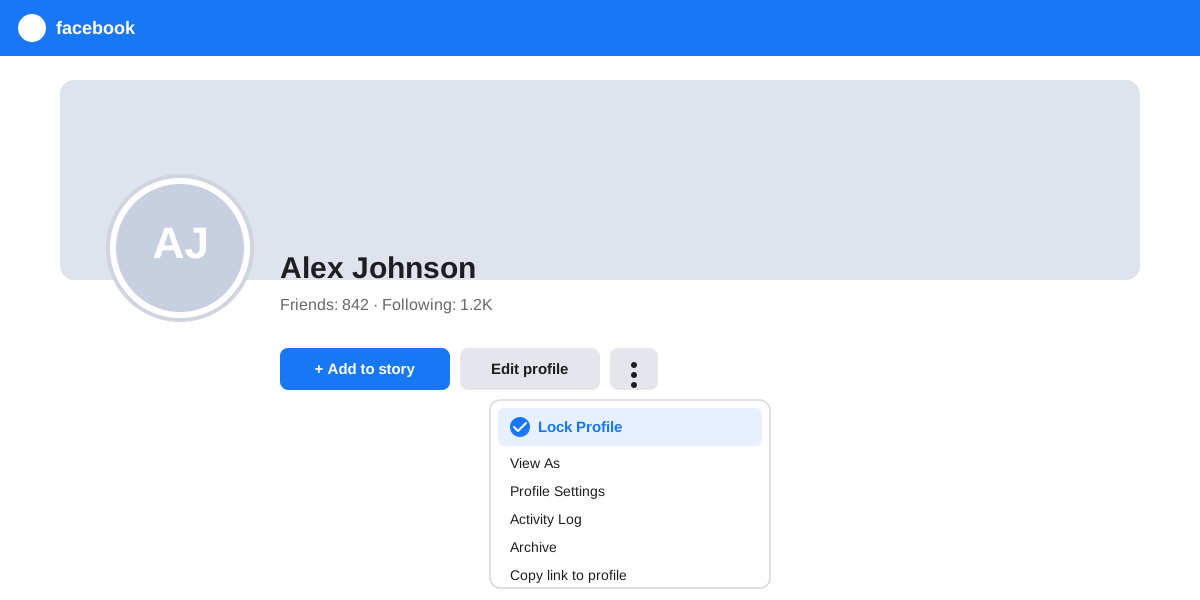
The short answer: to lock your Facebook profile, open your profile page, tap the three-dot menu next to Edit Profile, and select Lock Profile. Facebook then hides your full timeline, photos, and About details from anyone who is not a confirmed friend, while keeping your name and a small profile picture searchable.
What the Facebook profile lock feature actually does
Learning how to lock Facebook profile settings is easier once you know what the toggle changes underneath. The lock is not a new privacy layer. It is a bundle of existing Facebook privacy settings that Facebook flips for you in one step. Meta shipped it to reduce the number of taps needed to reach a safe default, especially for users who had never opened the Privacy Checkup.
When you lock profile on Facebook, the platform does seven things at once. It sets every future post to Friends, restricts old public posts, hides the full-size profile picture and cover photo from non-friends, blocks About details from strangers, hides your friend list, turns on timeline review, and turns on tag review. Meta describes this bundle in its official Help Center article on profile locking.
Who the feature is designed for
The profile lock was built primarily for users in regions where strangers often scrape public photos from women's profiles. It works well for any user who wants a restricted profile without learning every individual setting. If you are already comfortable inside Facebook privacy settings, you can replicate the same result manually. The lock just saves time.
How to lock your Facebook profile on mobile
The Facebook app is where most users meet this feature, and the flow is the same on iPhone and Android. The steps below assume you are signed in and have a region where the option has rolled out. If the menu item is missing, skip to the desktop fallback below.
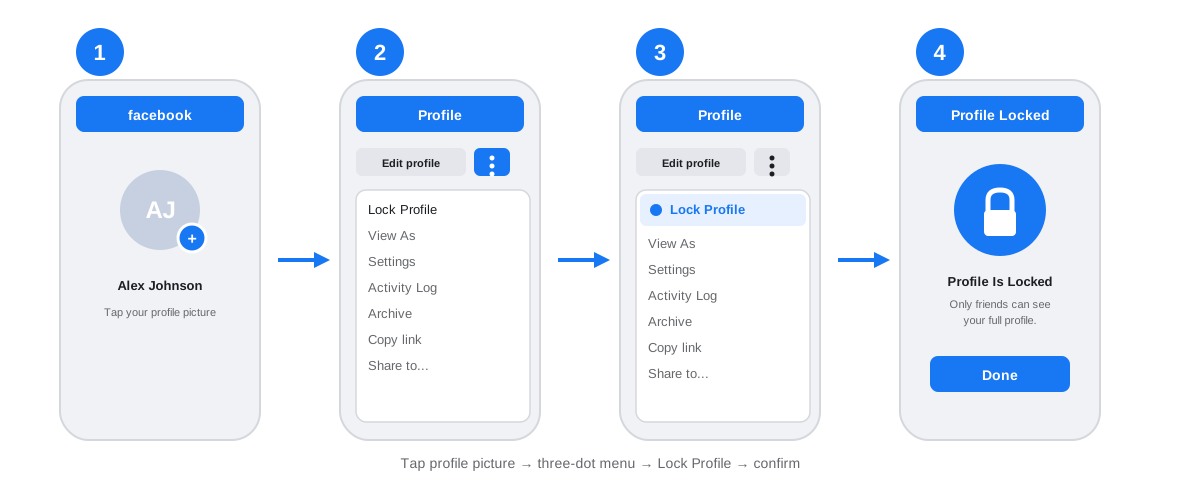
- Open the Facebook app and tap your profile picture in the top-right corner (iOS) or top-left corner (Android) to go to your profile.
- Tap the three-dot menu next to the Edit Profile button, just under your cover photo.
- Select Lock Profile from the list. Facebook shows a short explainer screen with a preview of how your profile will look to non-friends.
- Tap Lock Your Profile at the bottom of the explainer. Facebook confirms the change and returns you to your profile page with a blue shield badge on your profile picture.
How to lock your Facebook profile on desktop
Desktop support for the lock is patchy. In most regions the option only appears in the mobile app. If you only have a browser, the fastest substitute is the Privacy Checkup tool. Open the arrow menu in the top-right, pick Settings & Privacy, then Privacy Checkup, then Who Can See What You Share. Walk through every step and set each audience to Friends. That mimics the lock in every meaningful way.
What changes when you lock profile on Facebook
The clearest way to see the impact is to view your own profile the way a stranger sees it. Use the View As tool inside the three-dot menu. Facebook strips out every field the lock restricts and leaves only the public-safe fields.
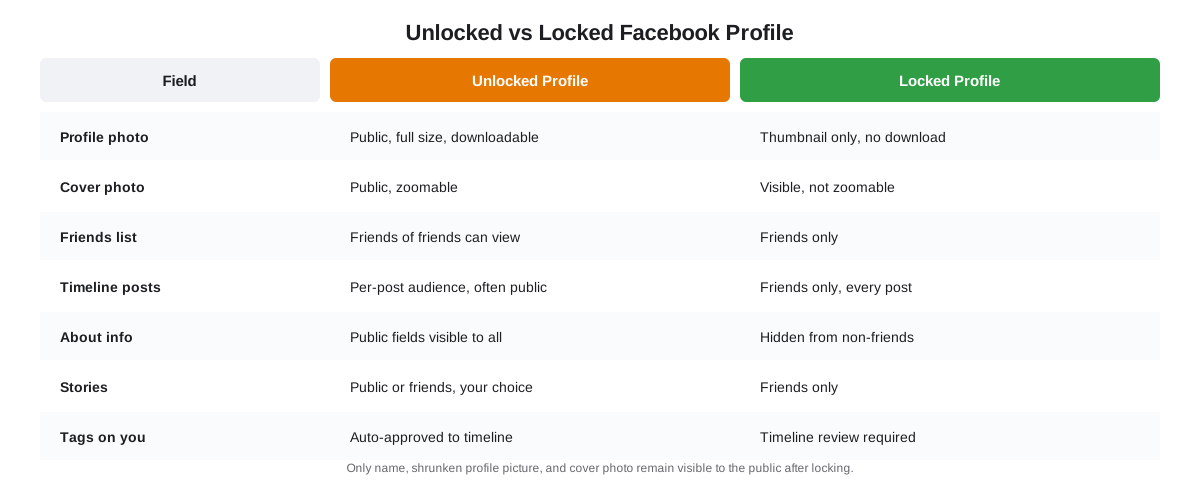
| Field | Unlocked profile | Locked profile |
|---|---|---|
| Profile photo | Full size, downloadable | Thumbnail only, guard optional |
| Cover photo | Visible and zoomable | Visible but not zoomable |
| Friends list | Friends of friends | Friends only |
| Timeline posts | Per-post audience | Friends only |
| About info | Public fields visible | Friends only |
| Stories | Public or friends | Friends only |
| Tags on you | Auto-approved | Timeline review required |
Notice that the lock does not scrub your existing public posts. It sets future posts to Friends and applies a bulk friends-only rule to old public posts. Anything you posted to a custom audience stays on that custom audience. If you want to clean up all old public posts, run the Limit Past Posts tool separately.
Who can see my Facebook profile after it is locked?
Only confirmed friends can see your full timeline, photos, stories, and About details once the lock is on. Everyone else, including friends of friends, sees your name, a small profile picture, your cover photo, and any public fields you have explicitly kept public. Your profile remains searchable on Facebook and Google because the lock restricts content, not discoverability.
How strangers still find your locked profile
A locked profile still appears in Facebook search, suggested friends, and Google results. The lock is a content filter, not a cloak. To reduce discoverability, open Settings > Privacy > How People Find and Contact You, then restrict search engines and friend requests to the audience you prefer. This is also where you manage Consumer Reports' recommended Facebook privacy baseline, which is a stricter template than the default lock.
Lock profile vs profile picture guard: which to use
Meta actually ships two related tools. The full profile lock is the umbrella option. The profile picture guard is a narrower feature that protects only your photo. Both can be turned on independently, and the right choice depends on what you are trying to prevent.
- Pick the full profile lock if you want strangers to see almost nothing beyond your name. This is the correct choice for most users who search for how to lock Facebook profile.
- Pick profile picture protection if you mainly worry about people downloading or screenshotting your photo. The guard adds a blue shield border and blocks the long-press-to-save gesture on mobile.
- Use both together if you want a restricted profile and a non-saveable photo. Facebook allows the stack without any conflicts.
- Skip both if you are a brand or creator who depends on a public profile for reach. Lock your personal account instead, and use a separate Facebook Page for public posting.
Extra Facebook privacy settings worth tightening
The lock is a strong starting point, but a few extra settings round out a genuinely private account. Each one takes less than a minute, and together they close the gaps the lock leaves open. Facebook has over 3 billion monthly active users on the main app, which means the privacy defaults are tuned for scale, not for any one person.
Run the Privacy Checkup
The Privacy Checkup walks you through five areas: who can see what you share, how to keep your account secure, how people can find you, your data settings on Facebook, and your ad preferences. It takes about four minutes end to end. Even with the lock active, the Checkup often surfaces an old permission or an app you forgot you authorised.
Turn on timeline review and tag review
The lock enables both by default, but confirm they stayed on. With timeline review, nothing a friend tags you in appears on your profile until you approve it. With tag review, you see any tag anyone adds to your posts before it goes live. Together they stop the most common ways a locked profile can still leak content.
Limit past public posts in bulk
Open Settings > Privacy > Your Activity, then tap Limit Who Can See Past Posts. Facebook rewrites every old public post to friends-only in one pass. This is the cleanest way to catch older status updates the lock does not otherwise touch.
Troubleshooting: the Lock Profile option is missing
If you open the three-dot menu and do not see Lock Profile, you are almost certainly outside the rollout region. Meta has not published a full country list, but the feature is live across India, Pakistan, Bangladesh, Sri Lanka, and several markets in the Middle East and North Africa. Users in the United States, the United Kingdom, and most of Europe cannot lock their profile at the time of writing.
If the feature is unavailable to you, the manual equivalent takes about ten minutes inside Facebook privacy settings. Set every About field to Friends, set your default post audience to Friends, hide your friend list, and turn on both review queues. For a broader look at platform privacy indicators, our guide on platform privacy indicators like the green dot on Snapchat covers the presence signals most users miss.
How SocialCRM helps you manage privacy across platforms
Locking one Facebook profile solves one platform. If you also run Instagram, X, LinkedIn, or TikTok, each network has its own restricted-profile pattern, its own View As flow, and its own set of privacy toggles. Keeping them aligned by hand is tedious and easy to forget after a feature update.
Our AI social media tools give you one surface to post, schedule, and review audience settings across every connected account. The composer shows the current visibility scope of each post before you publish, so you never accidentally ship a public update from a profile you meant to keep private. For a deeper walkthrough of how everything fits together, read the complete SocialCRM guide. If you also care about timing, our playbook on the best times to post on Instagram explains how to balance reach with audience privacy.
Frequently asked questions
Is the Facebook profile lock feature available in every country?
No. It rolled out first in India, then expanded to parts of South Asia, the Middle East, and North Africa. If you do not see the option in your three-dot menu, your region does not yet support it, and you will need to tighten Facebook privacy settings manually instead.
Can I lock only my Facebook profile picture without locking the whole profile?
Yes. Facebook offers a separate profile picture guard that blocks downloads and screenshots of your photo. You can turn the guard on by itself, or stack it with the full profile lock for stronger protection of your profile picture.
Who can see my Facebook profile after I lock it?
Only confirmed friends see your full timeline, photos, stories, and About details. Everyone else, including friends of friends, sees only your name, a shrunken profile picture, the cover photo, and a small set of public fields you have chosen to share.
Does locking my Facebook profile hide me from search results?
No. A locked profile still appears in Facebook search and on Google. The lock controls what viewers see after they click, not whether the profile is discoverable. Use Facebook privacy settings to block search engines from indexing your timeline if that matters to you.
Can I unlock my Facebook profile later?
Yes. Open your profile, tap the three-dot menu, and select Unlock Profile. Facebook reverts your privacy defaults, although it does not restore the exact per-post audience you had before locking. Review your Facebook privacy settings after unlocking.
TL;DR
- Three taps to lock: profile page, three-dot menu, Lock Profile. That is the whole flow for how to lock Facebook profile on mobile.
- The lock bundles seven privacy settings: friends-only posts, restricted photos, hidden friend list, timeline review, and tag review, all in one tap.
- Only friends see your timeline after the lock. Name, thumbnail profile picture, and cover photo stay public.
- Use View As to double-check what strangers see, and run the Privacy Checkup once a quarter to catch drift.
- Not in your region? Replicate the lock manually inside Facebook privacy settings, then run Limit Past Posts to clean up your old timeline.