The short answer: to log out of Facebook on the mobile app, tap your profile photo in the bottom right, scroll to the bottom of the menu, and tap Log Out. On a desktop browser, click the down arrow in the top right corner and pick Log Out from the menu. Both flows take three taps and sign you out only on the current device. To log out of Facebook on every device at once, use Accounts Center, Password and security, Where you are logged in, then Log out of all sessions.
How to log out of Facebook on the mobile app
The Facebook iOS and Android apps share the same three-tap path in the 2026 release. Meta consolidated the profile menu during the 2023 navigation refresh, and the Log Out row has lived at the very bottom of that menu ever since. If your menu looks different, your app is more than 18 months old and worth updating from the App Store or Play Store before you sign out, so the next login lands on the current UI.
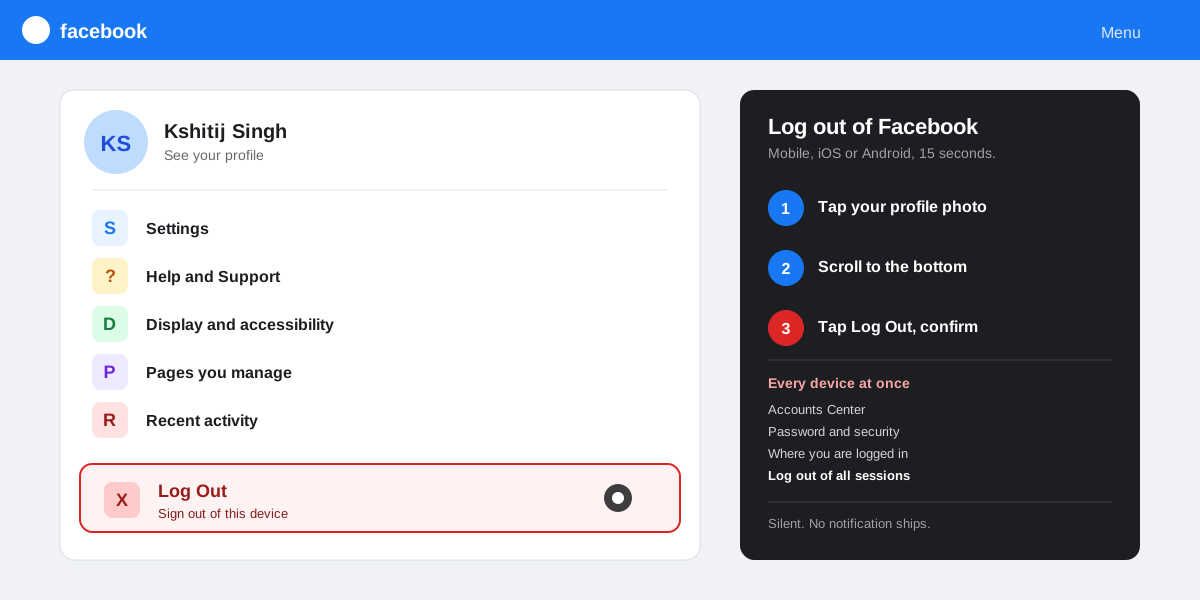
The three taps, in order
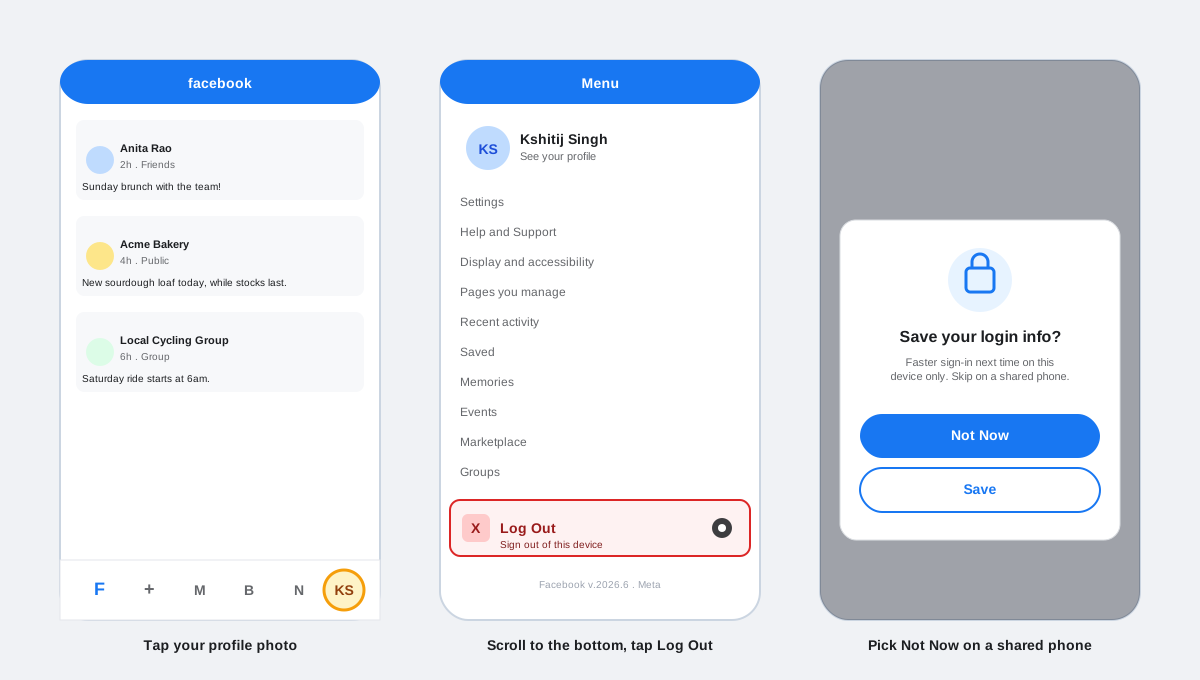
- Tap your profile photo in the bottom right of the Facebook app. The menu that loads is the same one you use to switch profiles, open Settings, and jump to your saved posts.
- Scroll to the bottom of the menu. Log Out sits below Settings, Help and Support, and the list of any linked Pages or business profiles you manage.
- Tap Log Out, then confirm. Facebook asks if you want to save your login info for next time. Tap Not Now on a shared device. Tap Save if the phone is yours and you want the account preloaded next time you open the app.
What the Save login info prompt actually does
Save login info caches an encrypted token on the device so the next opening of the Facebook app skips the email and password fields. It is convenient on a personal phone and risky on a shared one. The cache lives inside the iOS Keychain or the Android Keystore, which means a thief or a curious friend who unlocks the phone gets one-tap access to your account. On a borrowed device, always tap Not Now. On your own device, Save is fine and saves a few seconds on every login.
How to log out of Facebook on a desktop browser
The desktop flow is shorter because Facebook surfaces the Log Out shortcut in the same down-arrow menu that hosts Settings and the help center. The Chrome, Safari, Firefox, and Edge experience is identical in 2026, and the keyboard shortcut is the same as the click path.
- Click the down arrow in the top-right corner of any Facebook page, to the right of your profile photo and the notifications bell. The dropdown surfaces See all profiles, Settings and privacy, Help and support, Display and accessibility, and Log Out at the bottom.
- Click Log Out. Facebook signs the browser tab out instantly and lands on the public marketing page at facebook.com. There is no confirmation modal on desktop.
Closing the browser tab is not the same as logging out. Facebook stores a session cookie that survives tab closes, browser restarts, and even reboots on most desktop operating systems. The session only ends when you click Log Out or when the cookie expires (Meta documents the default at 90 days in the Facebook Cookies Policy). On a public or shared computer, always sign out explicitly. Closing the tab leaves the next user one URL away from your full account.
How to log out of Facebook on every device at once
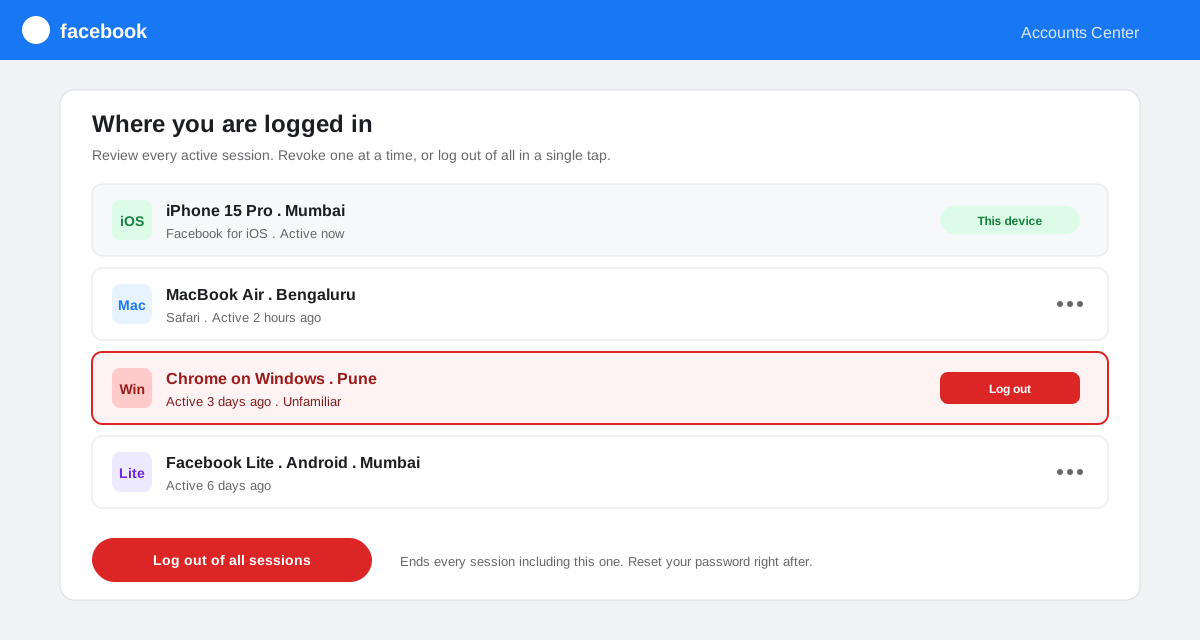
The per-device Log Out button only affects the device you tap it on. To log out of Facebook everywhere, use the Where you are logged in panel inside Accounts Center. This is the only path that ends every active session at once, which is the move you want after a lost phone, a stolen laptop, or a borrowed device you forgot to sign out of.
The five-step remote logout path
- Open Accounts Center. On mobile, tap your profile photo, then Settings, then Accounts Center at the top. On desktop, click the down arrow, then Settings and privacy, then Settings, then Accounts Center in the left rail.
- Tap Password and security. The first row in Accounts Center, marked with a shield icon.
- Tap Where you are logged in. Facebook lists every active session, grouped by device, with the rough city, the browser or app name, and the time of the last activity.
- Review the list. Tap the three-dot menu next to any unfamiliar session and pick Log out to revoke just that one. Sessions you do not recognise are a sign your password has been seen by someone else.
- Tap Log out of all sessions at the bottom to end every session at once, including the one on the current device. Confirm, then reset your password on the next screen. Meta documents the full flow in the Facebook Help Center page on logged-in sessions.
If you protect a few accounts the way our piece on how to lock your Facebook profile walks through, run the Where you are logged in sweep on the same schedule you review the profile lock. The two privacy chores pair well and take about five minutes together.
What happens after you log out of Facebook
Logging out is reversible and silent. Facebook does not notify friends, Pages, or Groups, and your profile keeps looking the same to everyone else. Five things change on the signed-out device the instant you tap Log Out.
- Your feed disappears on the device. The app or browser tab lands on the public marketing page at facebook.com (web) or the email-and-password screen (mobile).
- Push notifications stop on that device only. Other signed-in devices keep delivering notifications normally. If you log out of every session, every push channel pauses until you sign back in somewhere.
- Active Status flips to off for that device. If you have other active sessions, your green dot stays on for friends as long as at least one session is foreground. This is the same Activity Status logic we cover for Instagram in our piece on how to turn off active status on Instagram.
- Messenger stays signed in on iOS and Android. The Messenger app uses its own login token, so a Facebook logout does not touch the chat app. To sign out of Messenger, open Messenger, tap your profile photo, scroll to Log Out, and confirm.
- Scheduled posts keep shipping. Anything queued in Meta Business Suite, third-party schedulers like SocialCRM, or the native composer ships on time. Logout is a session change, not an account change.
When the Facebook Log Out button is missing or hidden
A small percentage of users land on a Facebook screen with no visible Log Out option. Three causes account for almost every case. Knowing which one applies tells you the right recovery path.
Facebook Lite hides Log Out under a different menu
Facebook Lite (the lightweight Android client built for low-bandwidth markets) puts the Log Out row inside the three-line hamburger menu in the top right, not the bottom profile photo. The order is Hamburger, scroll to the bottom, Log Out. Same outcome, different shelf. Meta keeps the Lite app on its own release cycle and only documents the difference deep in the Facebook Lite help section.
Embedded webviews never show Log Out
Facebook content loaded inside another app (a banking app, a news reader, a shared link opened from Messenger) runs in a webview that strips the navigation chrome. There is no Log Out button because the webview does not own the session. Close the embedded view and open the Facebook app or facebook.com in a real browser to find the regular Log Out flow.
The work profile or accounts switcher hides Log Out
If you use Facebook through multiple profiles (a personal profile plus one or more business profiles), the profile menu shows See all profiles instead of Log Out at the first level. Tap See all profiles, then the gear, then Log Out at the bottom. The single Log Out tap ends every profile session on the device, not just the active one. This is intentional: Meta treats profile switching as a view, not a session, and the underlying account is the one that signs out.
How to use SocialCRM when you log out of Facebook
Logging out of Facebook on your phone does not affect any scheduling tool you have connected to your Page. The SocialCRM composer stores its own long-lived Facebook token on the server, so scheduled posts ship on time even if you are signed out of the native app on every device. The token only invalidates if you change your Facebook password or revoke SocialCRM from Business Integrations in your Page settings. That means signing out for security, lending your phone, or traveling without it does not interrupt your publishing calendar.
If you are doing a full Facebook hygiene sweep, pair the logout with our guide on how to unblock someone on Facebook for the human side of the audit, and the delete a Facebook Page walkthrough if you are also winding down an inactive Page. The three guides together close every loose end on a Facebook account.
FAQ
Does logging out of Facebook delete my posts?
No. Log Out only ends the session on the current device. Your profile, posts, photos, friends list, Groups, Pages, and Messenger threads stay exactly the same. Anyone who visits your profile sees no change. The next time you sign back in (on any device), every piece of content is right where you left it.
How do I log out of Facebook Messenger?
Messenger uses a separate login token from the Facebook app. To sign out, open Messenger, tap your profile photo in the top left, scroll to the bottom, tap Log Out, and confirm. On desktop, sign out from messenger.com using the gear icon, Preferences, Account, Log Out. Facebook and Messenger logouts are independent. You can sign out of one without the other.
Will my friends know I logged out of Facebook?
No. Facebook never notifies friends, Groups, or Pages when you sign out. The only visible signal is your active status going dark on the device you signed out from, and even that flips off only when every session is signed out. Friends who tag you, message you, or comment on your posts during the gap see no difference.
How do I log out of Facebook on a stolen phone I cannot access?
Open Accounts Center on any other device (phone or browser), go to Password and security, then Where you are logged in. The stolen phone appears as one of the active sessions with its device name and last-active time. Tap the three-dot menu next to it and pick Log out to revoke just that one session, or pick Log out of all sessions for a clean sweep. Reset your password on the next screen so the lost token cannot be used to sign back in.
Why does Facebook keep me signed in even after I close the browser?
Facebook stores a long-lived session cookie that survives tab closes, browser restarts, and operating system reboots. Closing the tab does not end the session. The cookie expires after about 90 days of inactivity, but on any actively used account it gets refreshed long before that. The only ways to end the session are Log Out, a Where you are logged in revoke, or a manual cookie clear from the browser settings.
How do I log out of Facebook on a smart TV or game console?
Facebook does not run as a native app on most smart TVs or game consoles, so the logout question usually comes up for a linked Facebook account inside another app (Netflix, PlayStation, Xbox). Sign in to the host app on a phone or browser and revoke Facebook from its account settings. The session shows up under Where you are logged in too, where you can revoke it directly with the three-dot menu on the device row.
TL;DR
- Mobile (iOS and Android): profile photo, scroll to the bottom, Log Out. Tap Not Now on a shared phone so login info is not cached.
- Desktop: down arrow in the top right, Log Out. No confirmation modal. Closing the tab does not log you out.
- Every device at once: Accounts Center, Password and security, Where you are logged in, Log out of all sessions. Reset your password right after.
- Messenger is separate. Sign out of the Messenger app on its own through profile, Log Out.
- Logout is silent. No notification ever ships to friends, Pages, or Groups, and nothing in your account is deleted.